> ## Documentation Index
> Fetch the complete documentation index at: https://docs.cernel.com/llms.txt
> Use this file to discover all available pages before exploring further.
# Automations
> Automatically enrich products as they arrive or change - no manual intervention required.
Automations let you set up rules that automatically enrich products as they're created or updated. Pick a taxonomy and category, choose which attributes to generate, optionally narrow with filters, and Cernel handles the rest. Every product that matches your rule is enriched without anyone lifting a finger.
## How it works
An automation watches for products in a specific taxonomy and category. When a product arrives or changes in a way that matches your conditions, Cernel automatically runs enrichment using the agents linked to the attributes you selected. The results appear as jobs you can review from the Dashboard and on the automation's **Run history** tab.
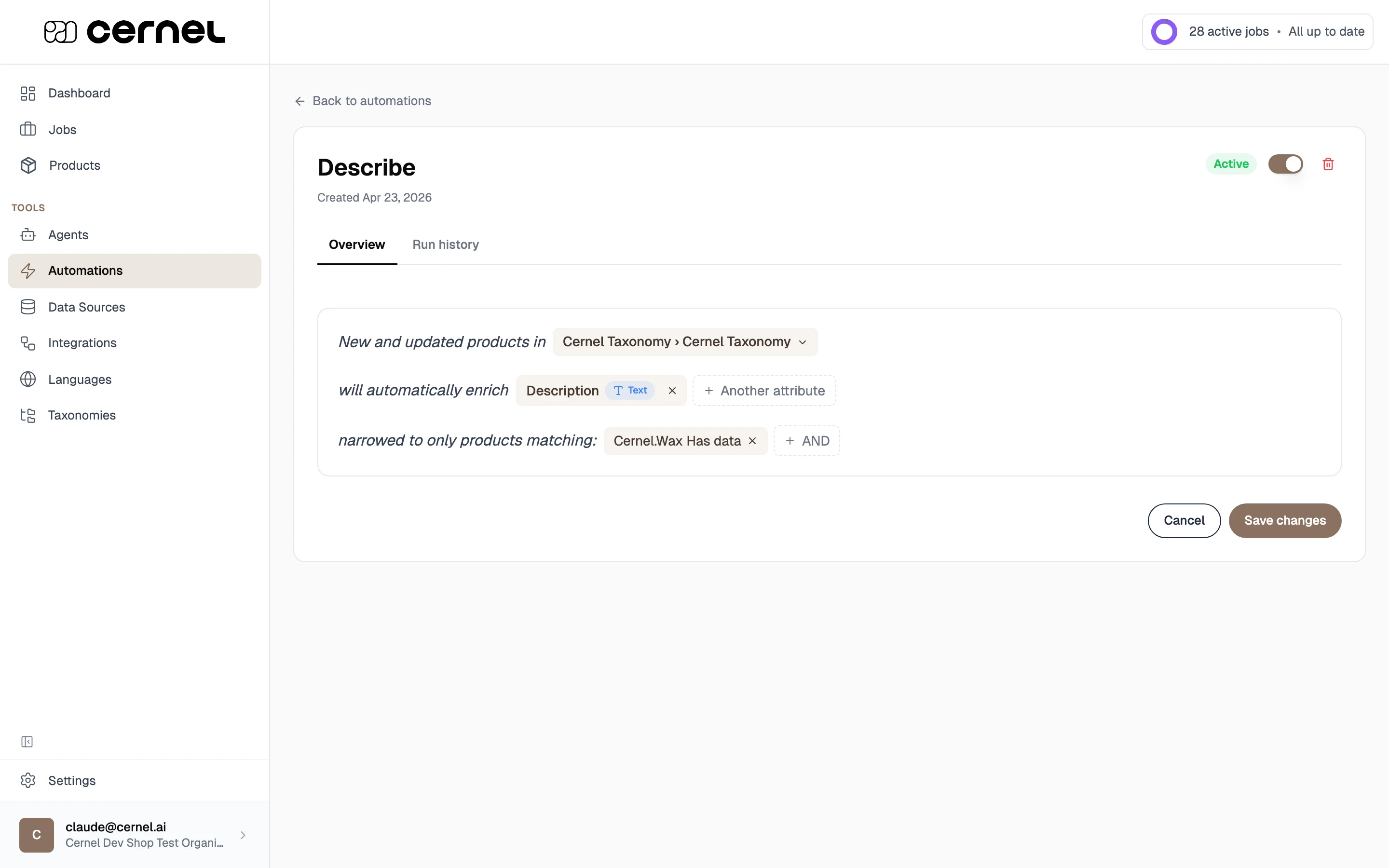
You configure automations by completing a one-page sentence builder: three lines that read as a single sentence and let you fill in each slot from the same screen.
### Why you would use this
Products get descriptions, meta titles, and structured attributes the moment they arrive or change. No one has to remember to trigger enrichment.
Every product that matches your rules gets the same treatment. No products slip through without content.
**Key concept: the automation sentence.** Each automation reads as one editable sentence: *"New and updated products in **\[taxonomy › category]** will automatically enrich **\[attributes]** narrowed to only products matching **\[filters]**"*. Click any slot to change it; the rest of the sentence updates around your choice.
## Before you begin
To create an automation, you need:
1. **A category with attributes:** the category must have attributes configured with linked AI agents
2. **At least one linked agent:** only attributes with agents appear in the attribute picker
## Creating an automation
Go to **Tools > Automations** in the sidebar. You'll see a list of existing automations, each shown as a compact sentence summary so you can scan the configuration at a glance.
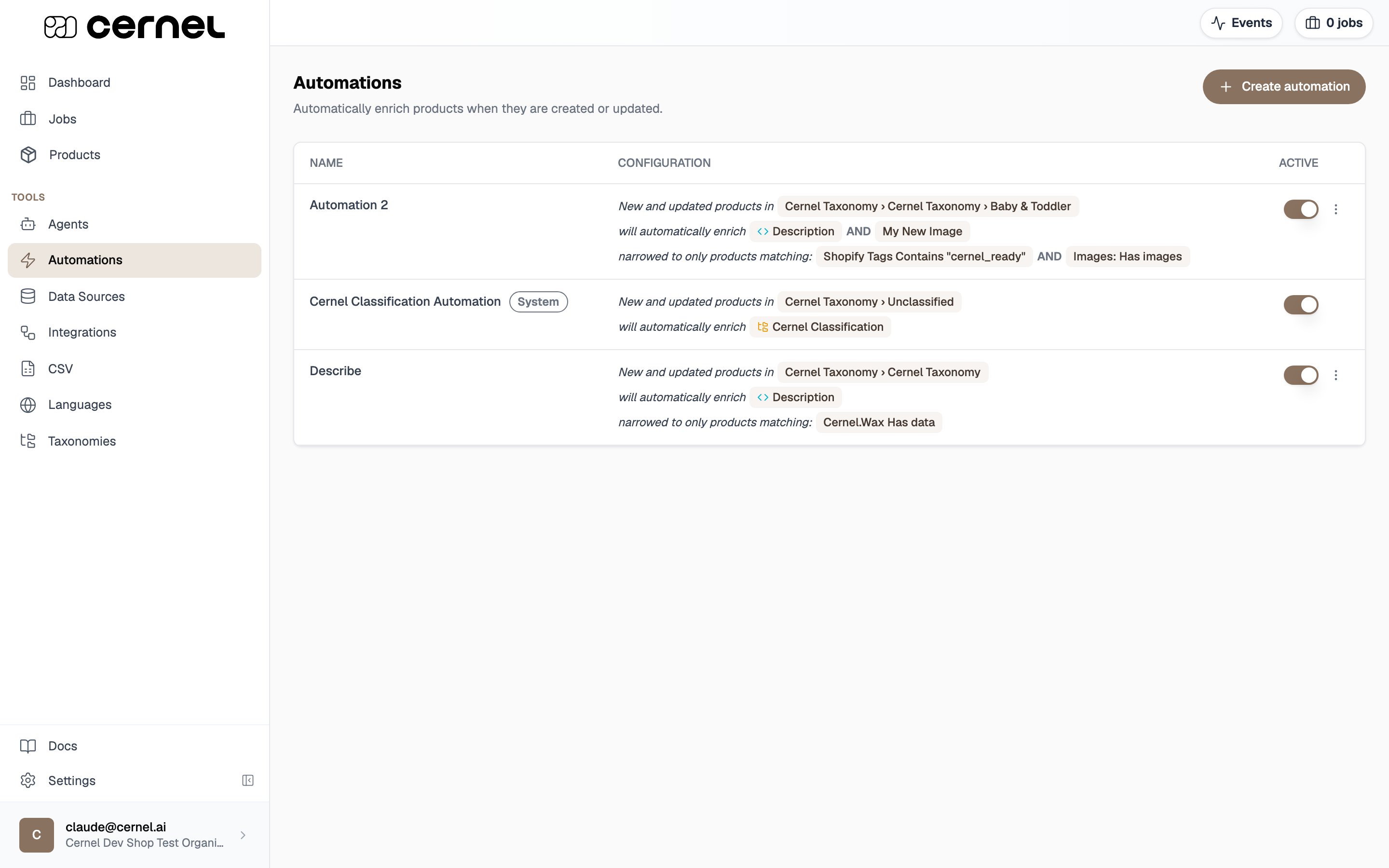 Click **Create automation** to open a blank automation on its own page. Give it a name in the **Unnamed automation** field at the top, then fill in the sentence below.
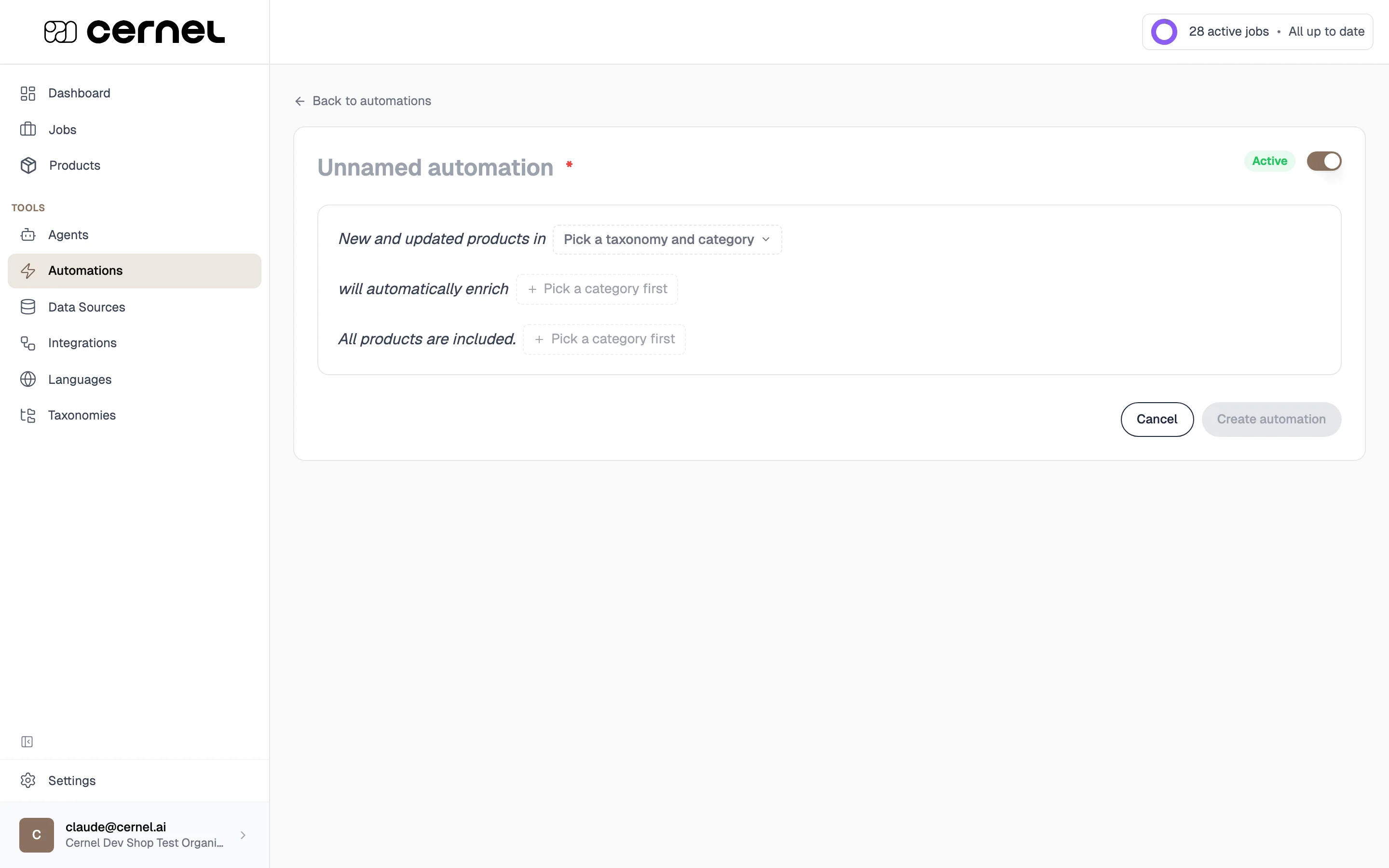 Click **Pick a taxonomy and category**. A popover opens with a taxonomy selector at the top and an expandable category tree below. Pick a taxonomy, then choose any category in the tree, or pick **Unclassified products** to target products that haven't been classified yet.
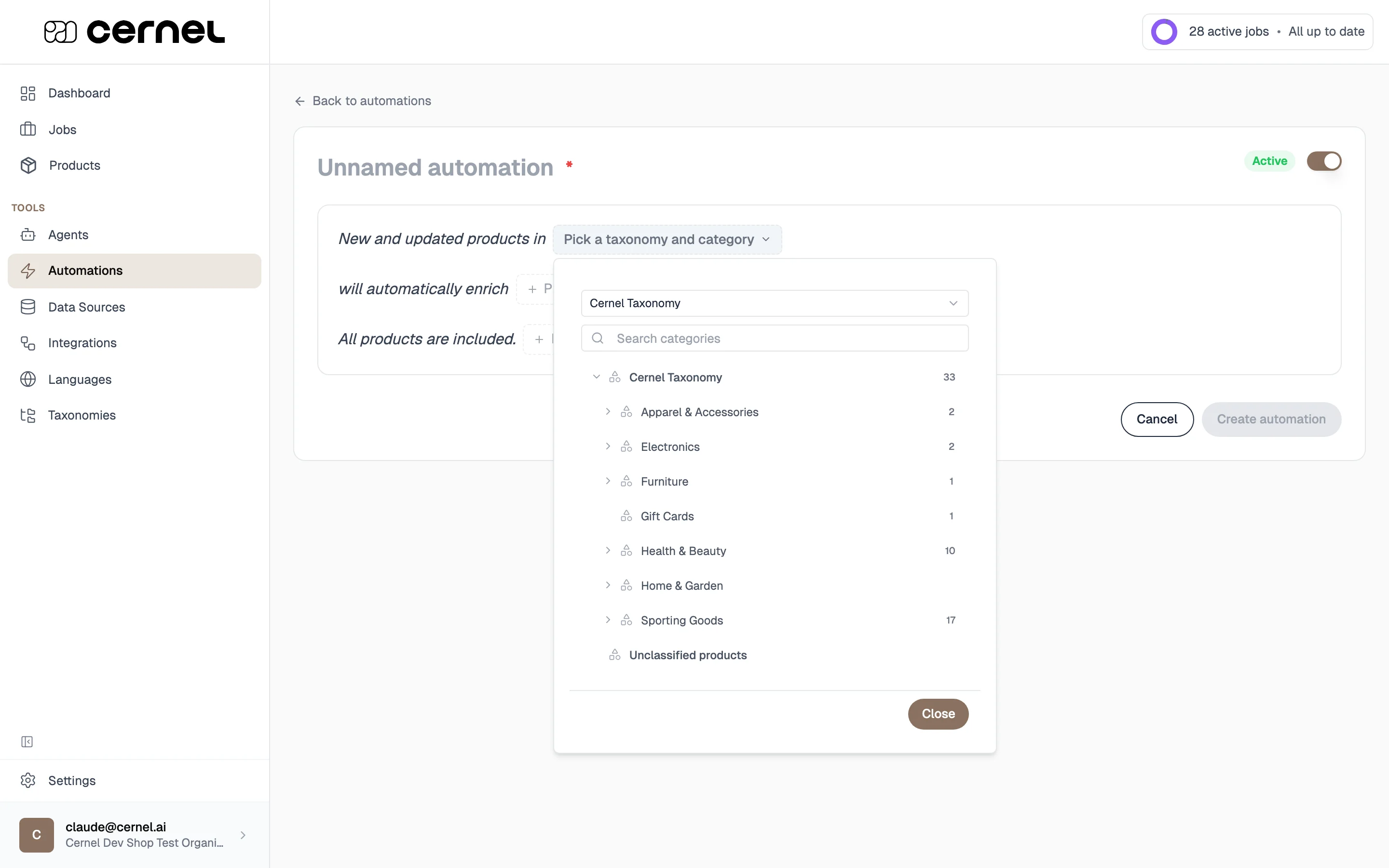 Switching taxonomies or categories after you've chosen attributes or filters clears them: attributes and filters are scoped to the category you picked.
Click the **Pick attributes** slot in the second line of the sentence. Choose one or more attributes. Only attributes that have an AI agent linked appear here. Add as many as you need; each one becomes a chip in the sentence, and **+ Another attribute** adds the next.
The third sentence line starts as *"All products are included."* To restrict the automation to a subset, click **Narrow down with a filter** and add one or more conditions on attribute values or product properties. Each filter becomes a chip; **+ AND** adds another condition.
Filters are optional. Leave them empty if you want every product in the category to be enriched.
Below the sentence, the **enrichment options** control how each run behaves: product scope, whether values go through Review, whether to fill only missing fields, and per-language generate/translate/skip choices. The defaults work for most automations, so you can skip this and adjust later. See [Enrichment options](#enrichment-options) for what each control does.
Toggle **Active** in the top-right if you want the automation running immediately, then click **Create automation**.
Your automation is created and appears in the Automations list. Matching products will be enriched automatically with the selected attributes.
## Enrichment options
Below the sentence builder, every automation carries the same **enrichment options** as a manual enrichment run, so an automation and a hand-started run behave identically. These options are saved with the automation and applied to every run it triggers.
Switching taxonomies or categories after you've chosen attributes or filters clears them: attributes and filters are scoped to the category you picked.
Click the **Pick attributes** slot in the second line of the sentence. Choose one or more attributes. Only attributes that have an AI agent linked appear here. Add as many as you need; each one becomes a chip in the sentence, and **+ Another attribute** adds the next.
The third sentence line starts as *"All products are included."* To restrict the automation to a subset, click **Narrow down with a filter** and add one or more conditions on attribute values or product properties. Each filter becomes a chip; **+ AND** adds another condition.
Filters are optional. Leave them empty if you want every product in the category to be enriched.
Below the sentence, the **enrichment options** control how each run behaves: product scope, whether values go through Review, whether to fill only missing fields, and per-language generate/translate/skip choices. The defaults work for most automations, so you can skip this and adjust later. See [Enrichment options](#enrichment-options) for what each control does.
Toggle **Active** in the top-right if you want the automation running immediately, then click **Create automation**.
Your automation is created and appears in the Automations list. Matching products will be enriched automatically with the selected attributes.
## Enrichment options
Below the sentence builder, every automation carries the same **enrichment options** as a manual enrichment run, so an automation and a hand-started run behave identically. These options are saved with the automation and applied to every run it triggers.
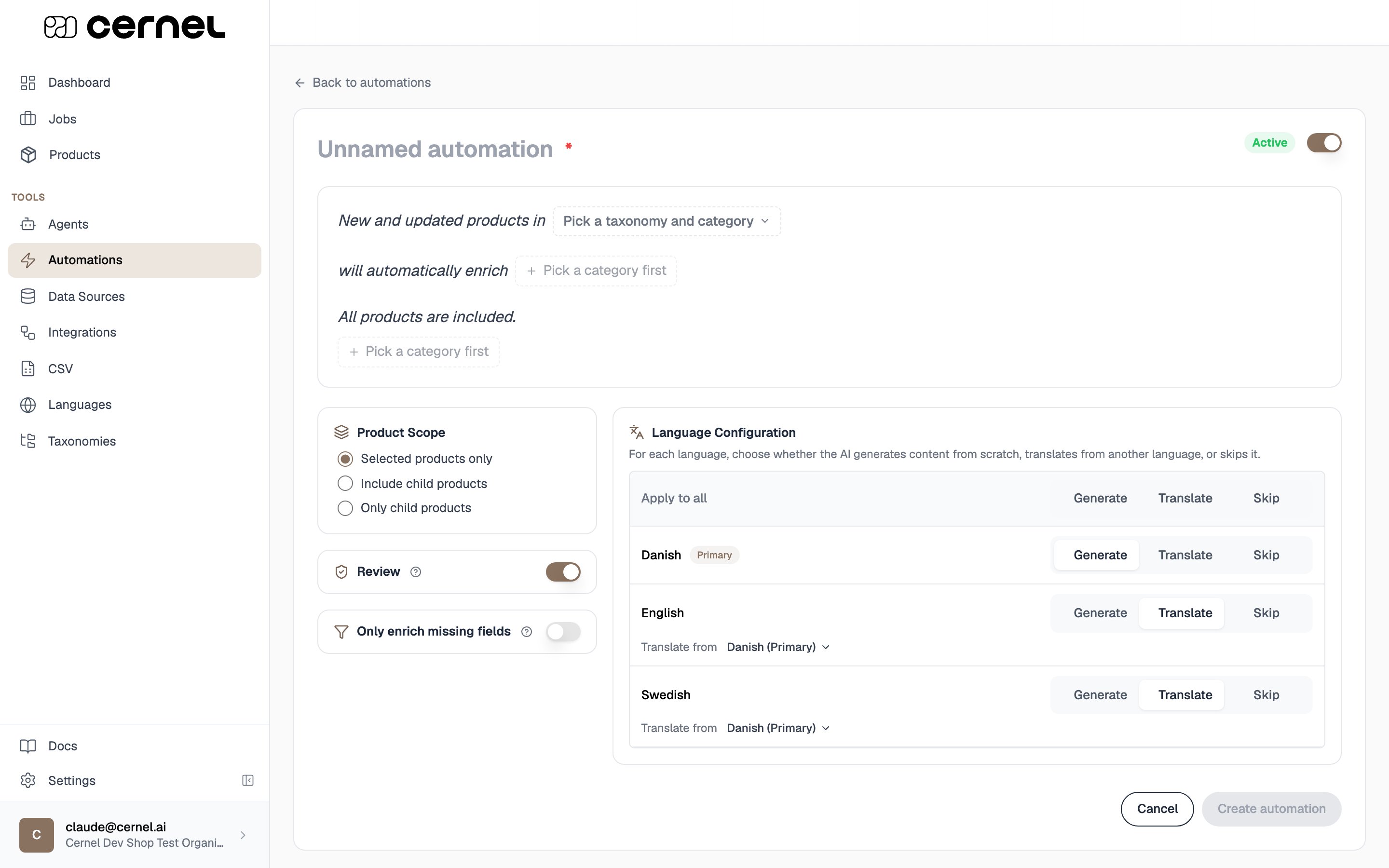 * **Product Scope**: whether the automation enriches the matched products only, includes their child products, or runs only on the children. Pick **Include child products** or **Only child products** when your enrichment should reach variants beneath the products that match.
* **Review**: when on, generated values are held as *pending* on the [Review surface](/features/jobs-and-enrichment#reviewing-proposed-values) for approval before they go live. When off, values are applied to your products automatically. The starting position follows your organization's approve-before-push setting, and you can override it per automation.
* **Only enrich missing fields**: when on, existing values are left untouched and enrichment runs only for attributes that are currently empty. Use this when you want an automation to backfill new products without overwriting content you have already reviewed or hand-edited.
* **Language Configuration**: for each language, choose whether the AI **generates** content from scratch, **translates** it from another language, or **skips** it. Use **Translate from** to set the source language for a translated language, and **Apply to all** to set the same mode for every language at once.
A language cannot be both a target for enrichment and a translation source for another language at the same time. If you select the same language for both, the page flags the conflict so you can resolve it before saving.
## Managing automations
Click any row in the Automations list to open the automation's detail page. The detail page uses the same sentence builder as creation: edit any slot in place, then click **Save changes**. Toggle **Active** in the top-right to pause or resume without losing the configuration, and use the red **delete** icon to remove an automation permanently.
* **Product Scope**: whether the automation enriches the matched products only, includes their child products, or runs only on the children. Pick **Include child products** or **Only child products** when your enrichment should reach variants beneath the products that match.
* **Review**: when on, generated values are held as *pending* on the [Review surface](/features/jobs-and-enrichment#reviewing-proposed-values) for approval before they go live. When off, values are applied to your products automatically. The starting position follows your organization's approve-before-push setting, and you can override it per automation.
* **Only enrich missing fields**: when on, existing values are left untouched and enrichment runs only for attributes that are currently empty. Use this when you want an automation to backfill new products without overwriting content you have already reviewed or hand-edited.
* **Language Configuration**: for each language, choose whether the AI **generates** content from scratch, **translates** it from another language, or **skips** it. Use **Translate from** to set the source language for a translated language, and **Apply to all** to set the same mode for every language at once.
A language cannot be both a target for enrichment and a translation source for another language at the same time. If you select the same language for both, the page flags the conflict so you can resolve it before saving.
## Managing automations
Click any row in the Automations list to open the automation's detail page. The detail page uses the same sentence builder as creation: edit any slot in place, then click **Save changes**. Toggle **Active** in the top-right to pause or resume without losing the configuration, and use the red **delete** icon to remove an automation permanently.
 ### List-view actions
You don't have to open the detail page for quick changes. Each row in the Automations list carries two controls:
* **Active toggle**: the switch on the right of each row pauses or resumes the automation in place. A paused automation stops processing products until you switch it back on.
* **Row menu**: opens a short menu whose one action, **Delete**, removes the automation permanently. Deleting from here warns you first, just like the detail page does. The built-in **Cernel Classification Automation** can't be deleted, so it shows no row menu.
To edit an automation's configuration or view its run history, click anywhere else on the row to open its [detail page](#managing-automations).
## Viewing run history
Each automation detail page has a **Run history** tab next to **Overview**. The tab lists the runs that have processed products for this automation:
### List-view actions
You don't have to open the detail page for quick changes. Each row in the Automations list carries two controls:
* **Active toggle**: the switch on the right of each row pauses or resumes the automation in place. A paused automation stops processing products until you switch it back on.
* **Row menu**: opens a short menu whose one action, **Delete**, removes the automation permanently. Deleting from here warns you first, just like the detail page does. The built-in **Cernel Classification Automation** can't be deleted, so it shows no row menu.
To edit an automation's configuration or view its run history, click anywhere else on the row to open its [detail page](#managing-automations).
## Viewing run history
Each automation detail page has a **Run history** tab next to **Overview**. The tab lists the runs that have processed products for this automation:
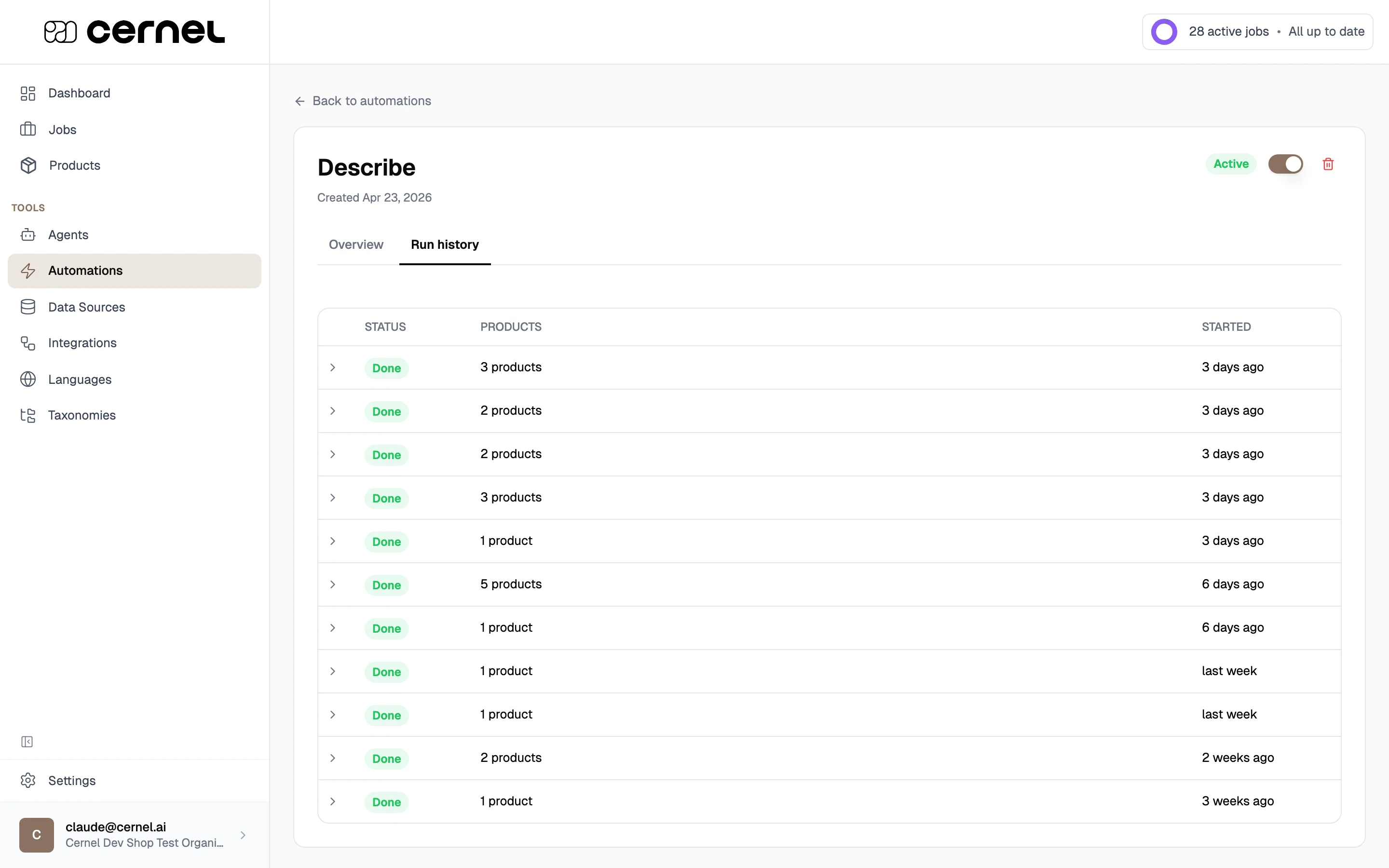 Each row shows:
* **Status**: Done (green), Running (blue), Pending (yellow), or Failed (red)
* **Products**: How many products the run processed
* **Started**: Relative time the run began
Expand a row to see the individual products processed in that run, with links into the product detail view.
## Multi-taxonomy and Unclassified products
Each automation is scoped to one taxonomy and category. If you have several taxonomies on the same products, create one automation per taxonomy / category combination; they run independently and write into different attribute sets.
You can also pick **Unclassified products** as the category. An Unclassified automation targets products that haven't been classified into the chosen taxonomy yet, and is limited to setting the **classifying attribute** of that taxonomy so the automation can place the product in the right category before any further enrichment runs.
Cernel ships with a built-in **Cernel Classification Automation** that classifies unclassified products into the Cernel Taxonomy. It appears in the Automations list with a **System** badge and can be paused but not edited or deleted.
## Frequently asked questions
Yes. Automations run on both newly created products and existing products that are updated: the automation re-evaluates products whose data has changed, and enriches any that match. To enrich a batch of unchanged products on demand, use manual enrichment from the products table instead.
Check three things:
1. **Is the automation active?** Paused automations don't process products. Check the **Active** toggle, either the switch on the automation's row in the list or the **Active** switch on its detail page.
2. **Do the conditions match?** If you set filters, products must match them. Open the automation and check the sentence; remove a filter temporarily to test.
3. **Are the attributes still configured?** The selected attributes must have AI agents linked. Check the category's attribute configuration.
Changes take effect for the next products that match. Products currently being processed complete with the previous configuration; products evaluated after you save use the new sentence.
Yes. You can create multiple automations with different attributes and filters for the same category. Each runs independently when its conditions are met. For example:
* **Automation 1:** Cernel Taxonomy › Apparel → Meta Title, Meta Description (basic SEO for everything)
* **Automation 2:** Cernel Taxonomy › Apparel, filtered to *has images* → Product Description, Materials (rich content only where the AI can see the product)
Open the automation and switch to the **Run history** tab. Failed runs show a red **Failed** badge; expand the row to see which specific products encountered errors and follow the link into the product detail view.
Optional. If you're importing a large batch and don't want each new or updated product to enqueue a job, pause the relevant automations first, complete the import, then resume them and manually enrich the batch on your own schedule.
Yes. Use the **Language Configuration** panel in the automation's [enrichment options](#enrichment-options). Set any language to **Skip** to leave it out, **Generate** to write fresh content for it, or **Translate** to derive it from another language. Only the languages you set to Generate or Translate are enriched by the automation.
It depends on the **Review** toggle in the automation's [enrichment options](#enrichment-options). With Review on, generated values wait on the Review surface for your approval before they go live. With Review off, they're applied to your products automatically. The toggle starts from your organization's approve-before-push setting, and you can override it per automation.
It's a built-in system automation that classifies products into the Cernel Taxonomy when they don't have a Cernel category yet. You can pause it from the list view if you want to take full control of classification, but it can't be edited or deleted.
## What's next
Make sure your agents are configured before setting up automations. Automations use linked agents to generate content.
Manually enrich products that automations don't cover, or kick off a one-off run for a specific batch.
Each row shows:
* **Status**: Done (green), Running (blue), Pending (yellow), or Failed (red)
* **Products**: How many products the run processed
* **Started**: Relative time the run began
Expand a row to see the individual products processed in that run, with links into the product detail view.
## Multi-taxonomy and Unclassified products
Each automation is scoped to one taxonomy and category. If you have several taxonomies on the same products, create one automation per taxonomy / category combination; they run independently and write into different attribute sets.
You can also pick **Unclassified products** as the category. An Unclassified automation targets products that haven't been classified into the chosen taxonomy yet, and is limited to setting the **classifying attribute** of that taxonomy so the automation can place the product in the right category before any further enrichment runs.
Cernel ships with a built-in **Cernel Classification Automation** that classifies unclassified products into the Cernel Taxonomy. It appears in the Automations list with a **System** badge and can be paused but not edited or deleted.
## Frequently asked questions
Yes. Automations run on both newly created products and existing products that are updated: the automation re-evaluates products whose data has changed, and enriches any that match. To enrich a batch of unchanged products on demand, use manual enrichment from the products table instead.
Check three things:
1. **Is the automation active?** Paused automations don't process products. Check the **Active** toggle, either the switch on the automation's row in the list or the **Active** switch on its detail page.
2. **Do the conditions match?** If you set filters, products must match them. Open the automation and check the sentence; remove a filter temporarily to test.
3. **Are the attributes still configured?** The selected attributes must have AI agents linked. Check the category's attribute configuration.
Changes take effect for the next products that match. Products currently being processed complete with the previous configuration; products evaluated after you save use the new sentence.
Yes. You can create multiple automations with different attributes and filters for the same category. Each runs independently when its conditions are met. For example:
* **Automation 1:** Cernel Taxonomy › Apparel → Meta Title, Meta Description (basic SEO for everything)
* **Automation 2:** Cernel Taxonomy › Apparel, filtered to *has images* → Product Description, Materials (rich content only where the AI can see the product)
Open the automation and switch to the **Run history** tab. Failed runs show a red **Failed** badge; expand the row to see which specific products encountered errors and follow the link into the product detail view.
Optional. If you're importing a large batch and don't want each new or updated product to enqueue a job, pause the relevant automations first, complete the import, then resume them and manually enrich the batch on your own schedule.
Yes. Use the **Language Configuration** panel in the automation's [enrichment options](#enrichment-options). Set any language to **Skip** to leave it out, **Generate** to write fresh content for it, or **Translate** to derive it from another language. Only the languages you set to Generate or Translate are enriched by the automation.
It depends on the **Review** toggle in the automation's [enrichment options](#enrichment-options). With Review on, generated values wait on the Review surface for your approval before they go live. With Review off, they're applied to your products automatically. The toggle starts from your organization's approve-before-push setting, and you can override it per automation.
It's a built-in system automation that classifies products into the Cernel Taxonomy when they don't have a Cernel category yet. You can pause it from the list view if you want to take full control of classification, but it can't be edited or deleted.
## What's next
Make sure your agents are configured before setting up automations. Automations use linked agents to generate content.
Manually enrich products that automations don't cover, or kick off a one-off run for a specific batch.