> ## Documentation Index
> Fetch the complete documentation index at: https://docs.cernel.com/llms.txt
> Use this file to discover all available pages before exploring further.
# Languages
> Generate AI-powered product content in multiple languages and configure language-specific prompts.
Cernel supports multi-language content generation. Enable the languages your store needs, give each one a translation prompt to guide AI output, and generate enriched content across all your active languages in a single enrichment run.
## How it works
Your organization has a **primary language** and can enable additional languages. When you run enrichment, Cernel generates content in each enabled language. Each language can carry its own **translation prompt** - additional context for that language, like grammar rules, cultural preferences, or terminology that should be used.
Languages are managed under **Tools > Languages**:
* The **languages list** is where you enable or disable languages and add new ones.
* Each language has its own **detail page** - open it to write that language's translation prompt and control how it's used during enrichment.
### Why you would use this
Generate product descriptions, meta titles, and structured data in every language your store supports - without hiring translators.
A per-language translation prompt ensures AI output follows the grammar, tone, and conventions of each target language, not just a direct translation.
## Setting up languages
Go to **Tools > Languages**. You'll see a table of available languages with their language code and status. Toggle languages on or off using the switch in each row.
Your primary language is marked with a badge and cannot be disabled.
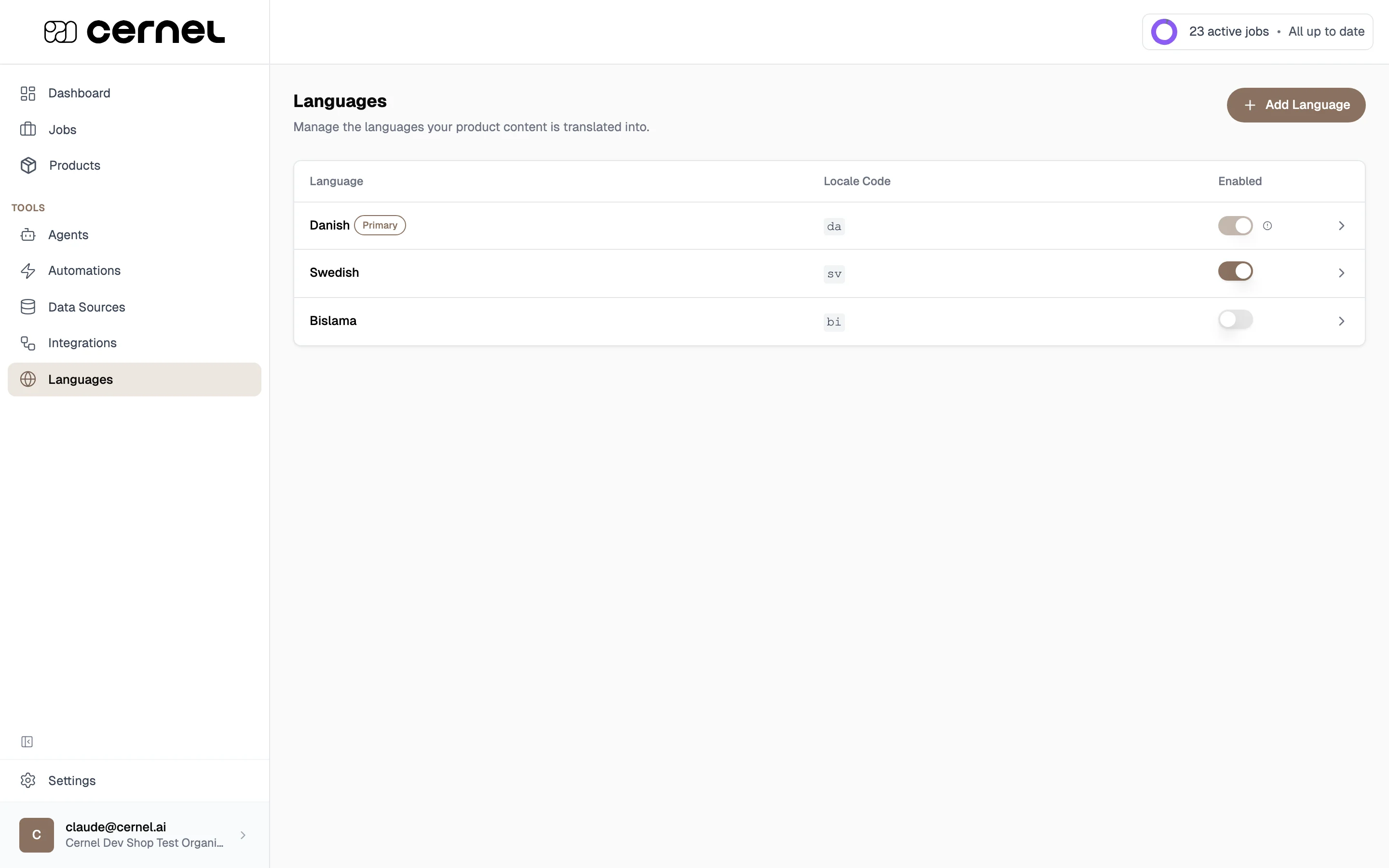 Click **Add Language** to enable a language that isn't in your list yet. Type the language code you want, for example `en` for English, `da` for Danish, or a region-specific code like `sv_FI` for Swedish (Finland), and click **Add Language**. Once added, the language appears in your table.
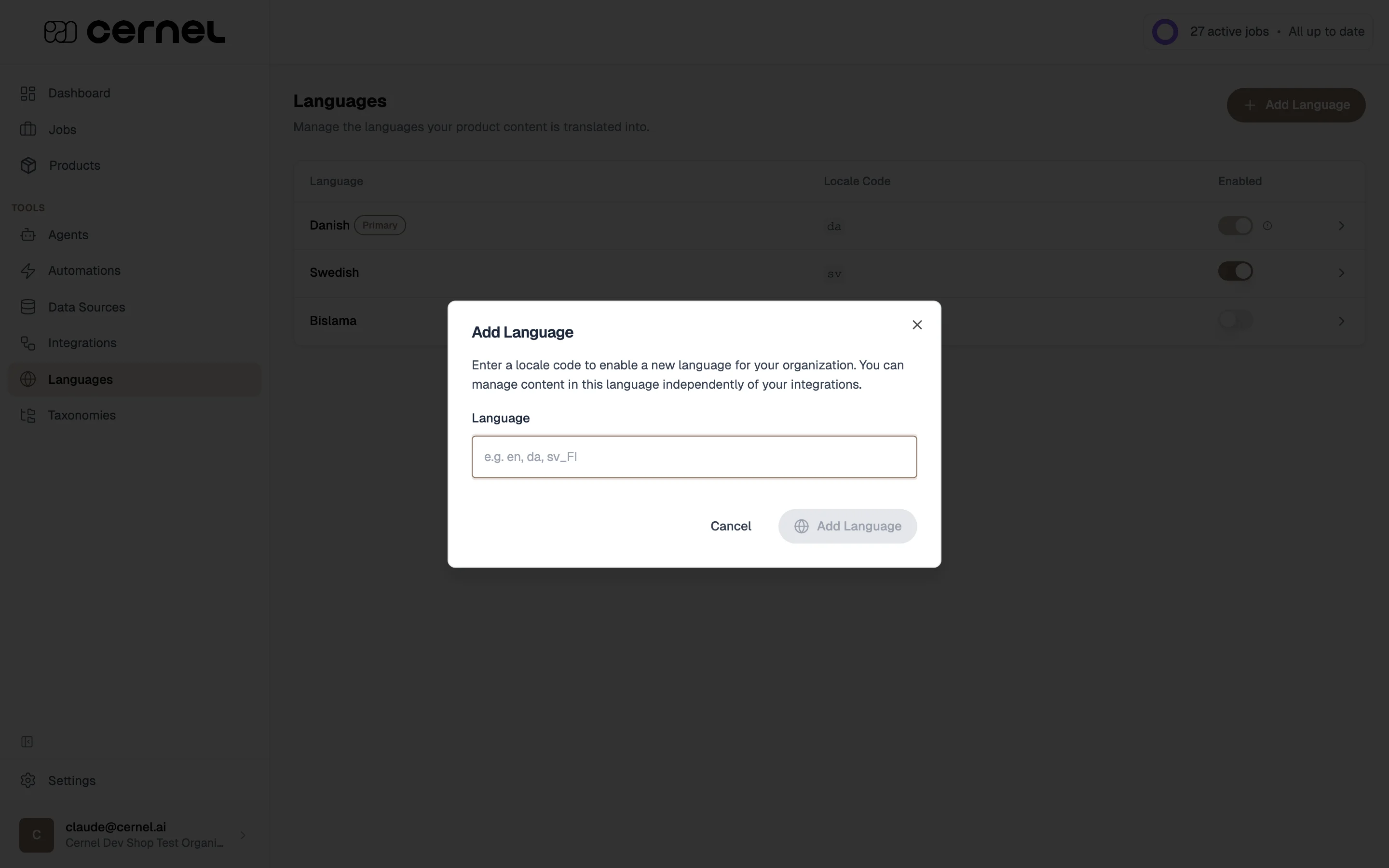 Language codes follow the IETF / ISO 639 conventions Cernel uses across the platform. Use a two-letter code (`en`, `da`, `de`) for a generic language, or combine a language and region with an underscore (`sv_FI`, `pt_BR`, `en_GB`) when you need region-specific content. The platform validates the code on submit, so if a code isn't recognised you'll see an error and can try again.
From **Tools > Languages**, click a language in the table to open its detail page. Here you can write a **translation prompt** for that language - instructions that guide how the AI produces content in it. Use it for:
* Grammar and style rules specific to the language
* Cultural conventions and preferences
* Terminology that should (or shouldn't) be used
Type `/` in the prompt editor to pull in a Data Source for reference, then click **Save**.
Language codes follow the IETF / ISO 639 conventions Cernel uses across the platform. Use a two-letter code (`en`, `da`, `de`) for a generic language, or combine a language and region with an underscore (`sv_FI`, `pt_BR`, `en_GB`) when you need region-specific content. The platform validates the code on submit, so if a code isn't recognised you'll see an error and can try again.
From **Tools > Languages**, click a language in the table to open its detail page. Here you can write a **translation prompt** for that language - instructions that guide how the AI produces content in it. Use it for:
* Grammar and style rules specific to the language
* Cultural conventions and preferences
* Terminology that should (or shouldn't) be used
Type `/` in the prompt editor to pull in a Data Source for reference, then click **Save**.
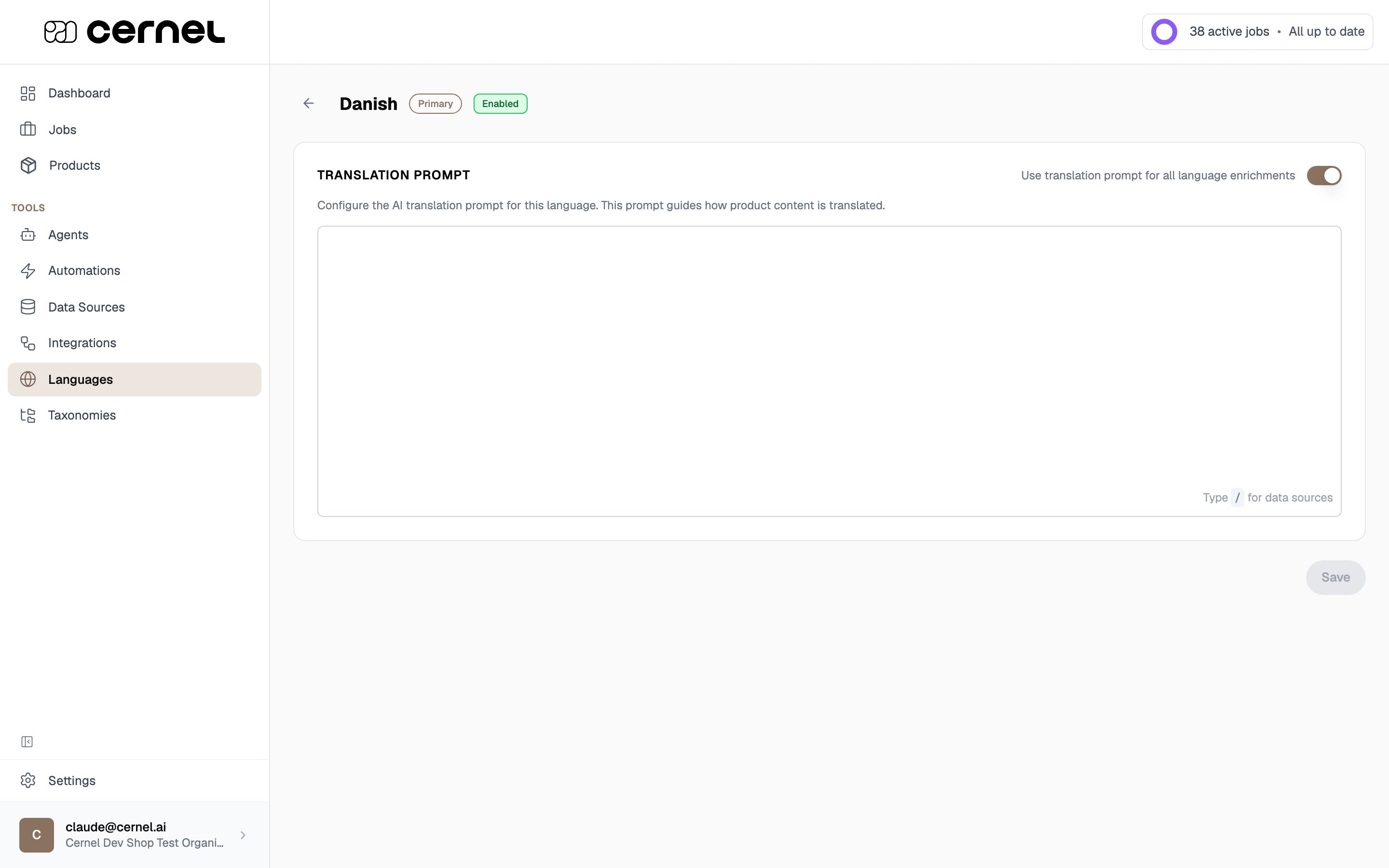 The **Use translation prompt for all language enrichments** toggle, at the top right of the Translation Prompt section, is on by default. While it's on, Cernel automatically instructs your agents to write this language's enriched content *in* that language, so your output always comes back correctly localised. Turn it off only if you'd rather control the output language entirely through your own prompts.
Your languages are configured. When you run enrichment, Cernel generates content in each enabled language, applying that language's translation prompt.
## Advanced configuration
Besides per-language translation prompts, you can set Global Prompts per attribute type (Text, HTML, Single Select, Multi Select). These are configured in **Settings > Global Prompts**. They provide foundational instructions that apply to all agents generating that type of content.
For example, a system prompt for HTML might say "Always use semantic HTML headings" while one for Single Select might say "When uncertain, choose the closest match rather than leaving empty."
For Single Select and Multi Select attributes, the predefined values can be translated into each enabled language. When configuring an attribute, the Values section shows translation status for each value. You can auto-translate or enter translations manually.
Disabling a language hides it from language selections but preserves all existing translations. You can re-enable it later without losing any data.
## Frequently asked questions
No. The same agents work across all languages. Cernel handles the language context through each language's translation prompt and your language settings. Your agents focus on what to generate, not which language to use.
The enrichment modal shows your enabled languages. Content is generated for all enabled languages by default. If you need content in just one language, you can manage this through your language settings.
A **translation prompt** is set per language and applies automatically to all content generated in that language - it handles language-wide rules. **Agent prompts** define what content to generate and how. They work together: the agent prompt says "write a 150-word product description" and the language's translation prompt adds "use formal Danish grammar."
Yes. When a language is set to **Translate** (rather than **Generate**), Cernel translates the value produced in the source language instead of writing it again from scratch. The translation reuses the prompt that generated the original value as read-only guidance, so the translated value honors the same length, tone, and format rules as its source. For example, a value written to a 150-word limit stays within that limit after translation. Each translated value also passes the same quality check Cernel applies to generated content, so corrupted output is caught and retried automatically.
## What's next
Create agents that generate content across all your enabled languages.
Run multi-language enrichment across your product catalog.
The **Use translation prompt for all language enrichments** toggle, at the top right of the Translation Prompt section, is on by default. While it's on, Cernel automatically instructs your agents to write this language's enriched content *in* that language, so your output always comes back correctly localised. Turn it off only if you'd rather control the output language entirely through your own prompts.
Your languages are configured. When you run enrichment, Cernel generates content in each enabled language, applying that language's translation prompt.
## Advanced configuration
Besides per-language translation prompts, you can set Global Prompts per attribute type (Text, HTML, Single Select, Multi Select). These are configured in **Settings > Global Prompts**. They provide foundational instructions that apply to all agents generating that type of content.
For example, a system prompt for HTML might say "Always use semantic HTML headings" while one for Single Select might say "When uncertain, choose the closest match rather than leaving empty."
For Single Select and Multi Select attributes, the predefined values can be translated into each enabled language. When configuring an attribute, the Values section shows translation status for each value. You can auto-translate or enter translations manually.
Disabling a language hides it from language selections but preserves all existing translations. You can re-enable it later without losing any data.
## Frequently asked questions
No. The same agents work across all languages. Cernel handles the language context through each language's translation prompt and your language settings. Your agents focus on what to generate, not which language to use.
The enrichment modal shows your enabled languages. Content is generated for all enabled languages by default. If you need content in just one language, you can manage this through your language settings.
A **translation prompt** is set per language and applies automatically to all content generated in that language - it handles language-wide rules. **Agent prompts** define what content to generate and how. They work together: the agent prompt says "write a 150-word product description" and the language's translation prompt adds "use formal Danish grammar."
Yes. When a language is set to **Translate** (rather than **Generate**), Cernel translates the value produced in the source language instead of writing it again from scratch. The translation reuses the prompt that generated the original value as read-only guidance, so the translated value honors the same length, tone, and format rules as its source. For example, a value written to a 150-word limit stays within that limit after translation. Each translated value also passes the same quality check Cernel applies to generated content, so corrupted output is caught and retried automatically.
## What's next
Create agents that generate content across all your enabled languages.
Run multi-language enrichment across your product catalog.