> ## Documentation Index
> Fetch the complete documentation index at: https://docs.cernel.com/llms.txt
> Use this file to discover all available pages before exploring further.
# Settings & Configuration
> Configure your Cernel platform: organization settings, Global Prompts, usage tracking, event monitoring, and platform preferences.
Cernel's configuration lives in two places in the sidebar. Day-to-day work items (Automations, Data Sources, Integrations, Languages) are grouped under **Tools** at the top of the sidebar. Platform-wide configuration (Global Prompts, Usage, team management, API access) lives under **Settings** at the bottom of the sidebar.
## Tools overview
The **Tools** section in the main sidebar holds the workspaces you return to as part of daily enrichment work:
| Tool | Path | What it controls |
| ---------------- | -------------------- | ---------------------------------------------- |
| **Automations** | Tools > Automations | Auto-enrichment rules for new products |
| **Data Sources** | Tools > Data Sources | Organization context library for agent prompts |
| **Integrations** | Tools > Integrations | Shopify, CSV, Feed, API connections |
| **Languages** | Tools > Languages | Enabled languages and language configuration |
## Settings overview
Click **Settings** at the bottom of the sidebar to access platform and team configuration.
### Global settings
| Setting | Path | What it controls |
| ------------------ | ------------------------- | -------------------------------------------------- |
| **Platform** | Settings > Platform | Approve Before Push, sidebar tree depth |
| **Global Prompts** | Settings > Global Prompts | System-level AI instructions per attribute type |
| **Usage** | Settings > Usage | Enrichment metrics, usage tracking |
| **Events** | Settings > Events | System activity log with filtering and diagnostics |
### Organization settings
| Setting | Path | What it controls |
| --------- | ---------------- | ------------------------------------------ |
| **Users** | Settings > Users | Team member management, roles, invitations |
### Developer settings
| Setting | Path | What it controls |
| ------------ | ------------------- | -------------------------------------- |
| **API** | Settings > API | API token management and documentation |
| **Webhooks** | Settings > Webhooks | Event notification URLs |
See [Developer Tools](/features/developer-tools) for a full guide on API tokens and webhook configuration.
## Key platform settings
### Approve Before Push
When enabled, AI-generated content must be explicitly approved before it syncs to your connected integrations. This gives you full control over what gets published to your store.
Find this at **Settings > Platform** under "Enable 'Approve Before Push'."
### Global Prompts
System-level instructions that apply to all AI agents. The page lists a system prompt per attribute type (Text, HTML, Single Select, Multi Select); click **Edit Prompt** on any type to customise it. These instructions are automatically included when an agent generates that type of content.
Per-language instructions live elsewhere: open a language under **Tools > Languages** to set its translation prompt. See [Languages](/features/languages#setting-up-languages).
Global Prompts combine with individual agent prompts. You don't need to repeat organization-wide rules in every agent. Put universal rules in Global Prompts, and content-specific instructions in agent prompts.
### Usage tracking
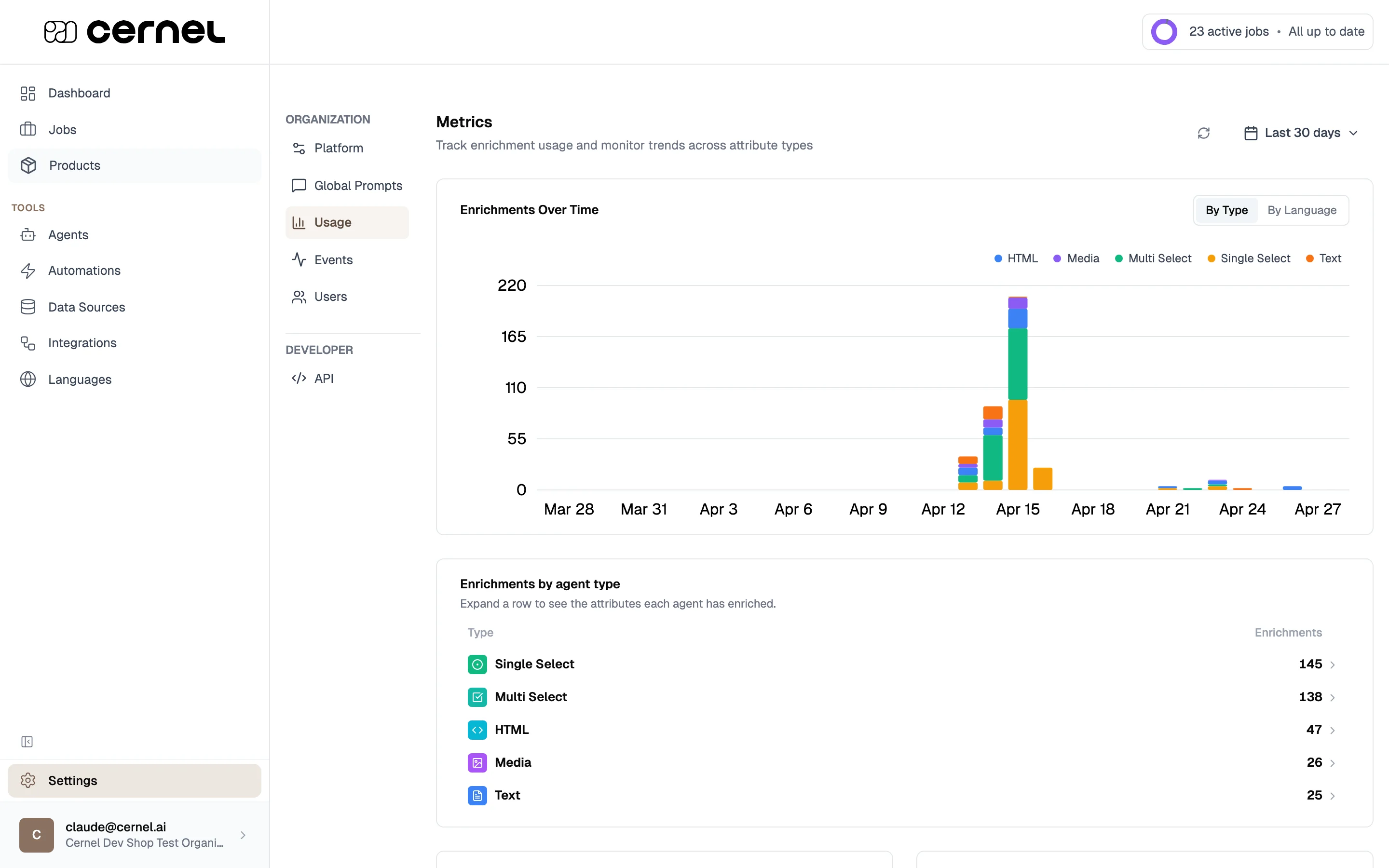
The Usage page (**Settings > Usage**) shows your enrichment activity:
* **Elements Run Total** - Total number of attribute values generated
* **Total Jobs** - Number of enrichment jobs run
* **Avg Elements Per Job** - Average attribute values generated per job
* **Elements Run Today** - Today's generation count
* **Enrichments over time** as a trend chart
* **Breakdown by type** (Text, HTML, Single Select, etc.)
* **Breakdown by language** for localization tracking
Filter by time period to track your enrichment usage across different ranges.
 ### Event Log
The Event Log (**Settings > Events**) gives you a real-time view of system activity across your Cernel platform. Use it to monitor what's happening with your integrations, enrichment runs, and product processing, and to quickly diagnose issues when something goes wrong.
### Event Log
The Event Log (**Settings > Events**) gives you a real-time view of system activity across your Cernel platform. Use it to monitor what's happening with your integrations, enrichment runs, and product processing, and to quickly diagnose issues when something goes wrong.
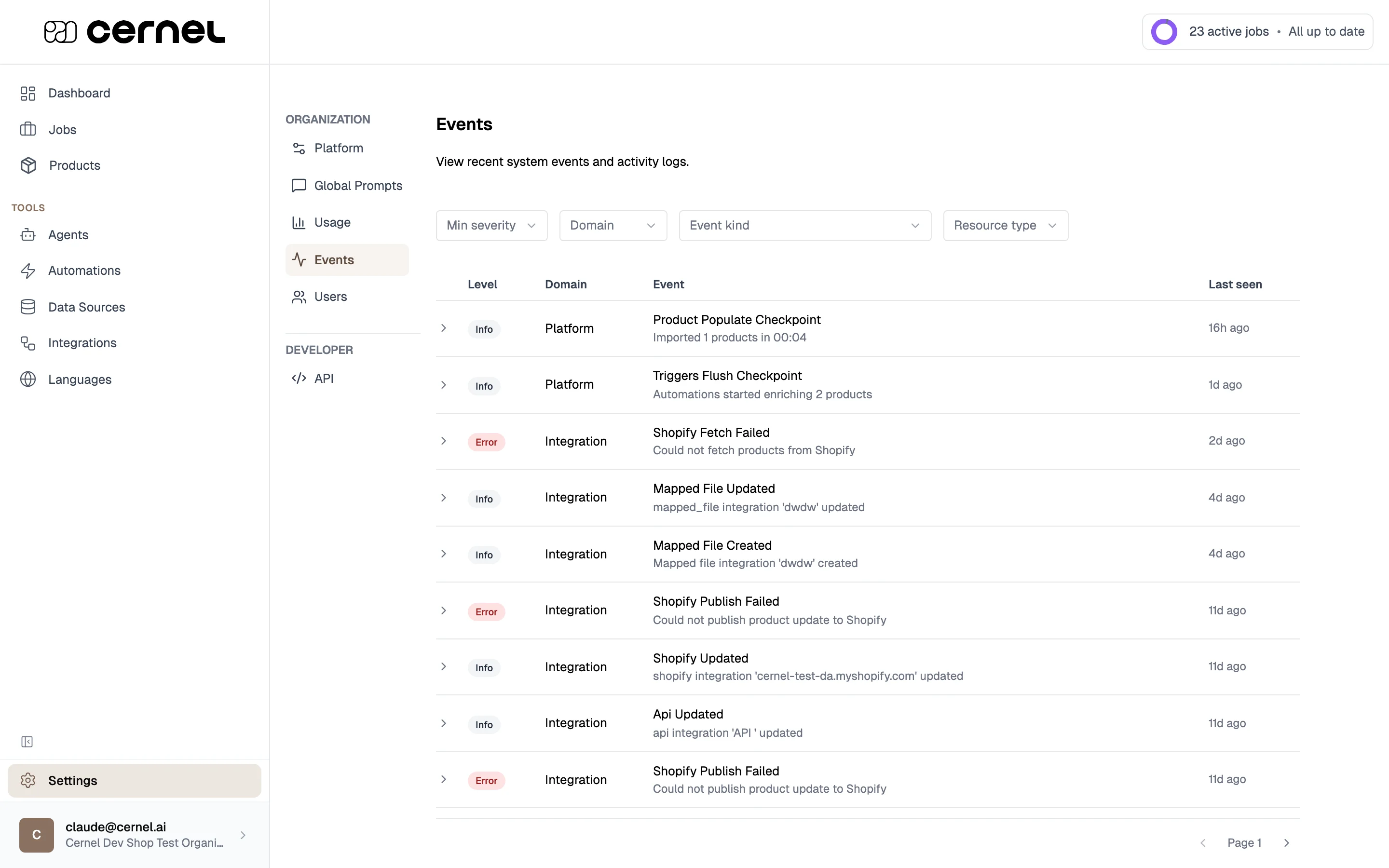 The event table shows four columns:
| Column | What it shows |
| ------------- | ------------------------------------------------------------------------------------------ |
| **Level** | Severity of the event: **Info** (normal activity) or **Error** (something needs attention) |
| **Domain** | Which part of the platform generated the event (e.g., Integration, Platform) |
| **Event** | A description of what happened |
| **Last seen** | How recently the event occurred |
Click any event row to expand it and see additional details: how many times it occurred, when it was first and last seen, the associated integration (if applicable), and any diagnostic information.
#### Filtering events
Use the filter toolbar at the top of the page to narrow down what you see:
* **Min severity**: Show only events at a certain severity level or above
* **Domain**: Filter to events from a specific platform area
* **Event kind**: Filter to a specific type of event
* **Resource type**: Filter by the type of resource involved (e.g., product, integration)
Click **Clear filters** to reset all filters and see the full event stream again.
If you're troubleshooting a sync issue with an integration, filter by the **Integration** domain and **Error** severity to quickly find relevant events.
### Category depth
Control how many levels of your taxonomy appear in the sidebar navigation. Set this at **Settings > Platform**. Choose between 3 and 7 levels. This is display-only and doesn't affect how attributes flow or how enrichment works.
## Frequently asked questions
**Tools** are the workspaces you use day-to-day to configure how enrichment runs: Automations, Data Sources, Integrations, and Languages. They live at the top of the sidebar because you visit them regularly. **Settings** (at the bottom of the sidebar) holds platform-level and team configuration you change infrequently: Global Prompts, Usage tracking, Users, API tokens, and Webhooks.
**Global settings** affect how the platform behaves for everyone in your workspace (Global Prompts, Usage tracking). **Organization settings** manage team access (Users).
Admin users can access all settings. Regular users have limited access depending on their role. User management (inviting, removing, changing roles) is admin-only.
**Settings > Usage**. This shows total enrichments, trends over time, and breakdowns by type and language.
Go to **Settings > Events** and filter by **Domain: Integration** and **Min severity: Error**. The event log shows all recent errors along with details about what went wrong. Expand any event row for diagnostic information including occurrence count and timestamps.
Global Prompts are prepended to agent prompts automatically. The AI receives both: the Global Prompt first (for universal rules), then the agent's specific prompt (for content instructions). This means rules like "never use superlatives" only need to be set once in Global Prompts, not in every agent.
## What's next
Manage team members, roles, and invitations.
Enable languages and configure language-specific Global Prompts.
The event table shows four columns:
| Column | What it shows |
| ------------- | ------------------------------------------------------------------------------------------ |
| **Level** | Severity of the event: **Info** (normal activity) or **Error** (something needs attention) |
| **Domain** | Which part of the platform generated the event (e.g., Integration, Platform) |
| **Event** | A description of what happened |
| **Last seen** | How recently the event occurred |
Click any event row to expand it and see additional details: how many times it occurred, when it was first and last seen, the associated integration (if applicable), and any diagnostic information.
#### Filtering events
Use the filter toolbar at the top of the page to narrow down what you see:
* **Min severity**: Show only events at a certain severity level or above
* **Domain**: Filter to events from a specific platform area
* **Event kind**: Filter to a specific type of event
* **Resource type**: Filter by the type of resource involved (e.g., product, integration)
Click **Clear filters** to reset all filters and see the full event stream again.
If you're troubleshooting a sync issue with an integration, filter by the **Integration** domain and **Error** severity to quickly find relevant events.
### Category depth
Control how many levels of your taxonomy appear in the sidebar navigation. Set this at **Settings > Platform**. Choose between 3 and 7 levels. This is display-only and doesn't affect how attributes flow or how enrichment works.
## Frequently asked questions
**Tools** are the workspaces you use day-to-day to configure how enrichment runs: Automations, Data Sources, Integrations, and Languages. They live at the top of the sidebar because you visit them regularly. **Settings** (at the bottom of the sidebar) holds platform-level and team configuration you change infrequently: Global Prompts, Usage tracking, Users, API tokens, and Webhooks.
**Global settings** affect how the platform behaves for everyone in your workspace (Global Prompts, Usage tracking). **Organization settings** manage team access (Users).
Admin users can access all settings. Regular users have limited access depending on their role. User management (inviting, removing, changing roles) is admin-only.
**Settings > Usage**. This shows total enrichments, trends over time, and breakdowns by type and language.
Go to **Settings > Events** and filter by **Domain: Integration** and **Min severity: Error**. The event log shows all recent errors along with details about what went wrong. Expand any event row for diagnostic information including occurrence count and timestamps.
Global Prompts are prepended to agent prompts automatically. The AI receives both: the Global Prompt first (for universal rules), then the agent's specific prompt (for content instructions). This means rules like "never use superlatives" only need to be set once in Global Prompts, not in every agent.
## What's next
Manage team members, roles, and invitations.
Enable languages and configure language-specific Global Prompts.