> ## Documentation Index
> Fetch the complete documentation index at: https://docs.cernel.com/llms.txt
> Use this file to discover all available pages before exploring further.
# Struct PIM
> Connect Cernel to your Struct PIM workspace for two-way product sync: pull your catalog, enrich it with AI, and push enriched content back.
Cernel connects directly to your Struct PIM workspace for two-way product sync. Pull your full product catalog into Cernel, enrich it with AI, and push the results back to Struct PIM, without leaving the platform.
## How it works
The Struct PIM integration creates a live connection between your PIM and Cernel using your Struct PIM Base URL and API Key. Once connected, Cernel imports your products and keeps the connection open for pushing enriched content back.
Like Shopify, Struct PIM is a **bidirectional** integration: data flows from Struct PIM into Cernel and from Cernel back to Struct PIM.
### Why you would use this
Pull products from Struct PIM and push enriched content (descriptions, structured attributes, media) back to the same PIM.
If you organise your catalog into dimensions, point Cernel at the exact dimension you want to enrich and ignore the rest.
**Key concept: Dimension.** Struct PIM uses dimensions to slice the same catalog by market, channel, or audience. Cernel can target one specific dimension when exporting data so enriched content lands exactly where you need it. You choose dimensions during setup and can change them later from the integration detail panel.
## Step-by-step guide
Go to **Tools > Integrations** and click **Add integration**. Cernel opens the **Connect your catalog** picker with every supported integration as a card.
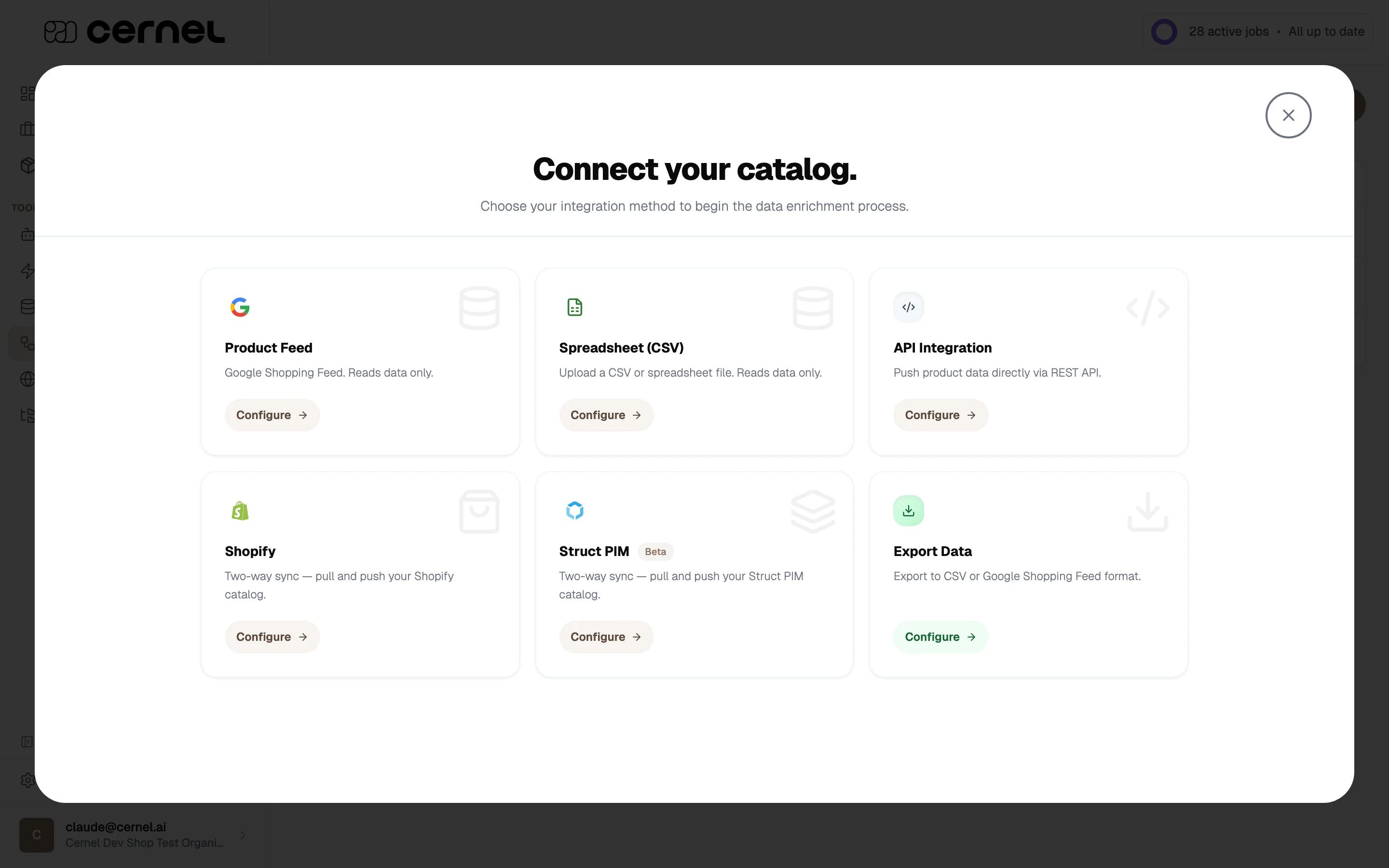 Click **Configure** on the **Struct PIM** card. Cernel opens the configuration form.
Enter the details for your Struct PIM workspace:
* **Integration Name**: A descriptive name (for example, `My Struct PIM`).
* **Version**: Pick **Struct PIM v3** or **Struct PIM v4** depending on which version your workspace runs.
* **Base URL**: The base URL of your Struct PIM instance (for example, `https://your-struct-pim-instance.com`).
* **API Key**: A Struct PIM API key with read and write access to the products and dimensions you want Cernel to manage.
Click **Configure** on the **Struct PIM** card. Cernel opens the configuration form.
Enter the details for your Struct PIM workspace:
* **Integration Name**: A descriptive name (for example, `My Struct PIM`).
* **Version**: Pick **Struct PIM v3** or **Struct PIM v4** depending on which version your workspace runs.
* **Base URL**: The base URL of your Struct PIM instance (for example, `https://your-struct-pim-instance.com`).
* **API Key**: A Struct PIM API key with read and write access to the products and dimensions you want Cernel to manage.
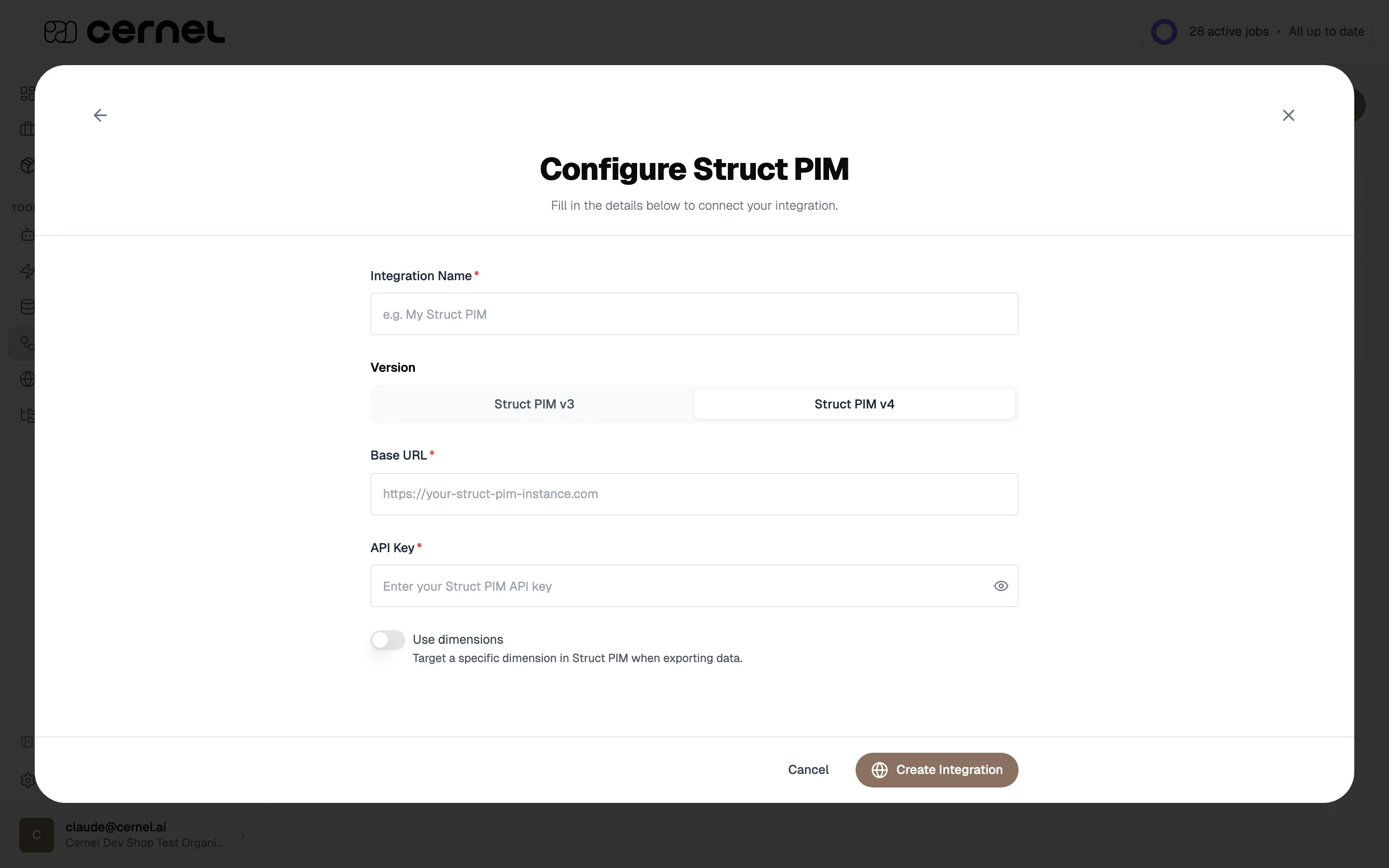 Cernel stores the API key only long enough to verify the connection and fetch dimensions. You'll need to re-enter the key later if you want to refresh the dimension list.
Toggle **Use dimensions** on if you want Cernel to target a specific dimension in Struct PIM when exporting data. With the toggle on, click **Fetch dimensions**: Cernel calls Struct PIM with the Base URL and API Key you entered and lists the available dimensions. Select one or more dimensions from the multi-select.
Leave **Use dimensions** off if you want Cernel to work against your workspace without scoping exports to a dimension.
Click **Create Integration**. Cernel connects to Struct PIM and starts importing your products.
Your Struct PIM integration appears under **Tools > Integrations**. Products begin arriving in your Catalog and are ready for enrichment.
## Integration overview
After connecting, the integration appears in **Tools > Integrations** with these properties:
| Field | Description |
| ------------- | ---------------------------------------------- |
| **Name** | The name you gave the integration during setup |
| **Type** | Struct PIM |
| **Direction** | Ingress & Egress (two-way) |
| **Languages** | The language(s) configured for this connection |
| **Active** | Whether the integration is currently enabled |
| **Status** | Current sync state (Idle, Syncing, or Error) |
Click **Settings** on your Struct PIM integration to access quick actions:
* **View Integration Details**: Open the full configuration panel
* **Integration Enabled**: Toggle the integration on or off without removing it
* **Reset Import**: Clear imported data and re-sync from Struct PIM
* **Remove Integration**: Disconnect the workspace entirely
## Changing the targeted dimensions later
You can change the dimensions Cernel targets at any time without recreating the integration. Open the integration detail panel and find the **Struct PIM Dimensions** section.
The Base URL is already filled in. Re-enter your Struct PIM API key: Cernel doesn't store the key after the initial fetch, so you'll need it again to refresh the dimension list.
Click **Fetch dimensions**. Cernel lists every dimension available in your workspace.
Select the dimensions you want to target, then click **Save dimensions**. Cernel confirms the change and resyncs so the new mappings apply.
Saving new dimensions triggers a resync of the integration. Plan the change for a moment when a fresh import won't interrupt active enrichment work.
## Property mapping
Like every Cernel integration, the Struct PIM connection has a **Property Mapping** view that controls how data flows between Struct PIM fields and Cernel attributes. Open the mapping view from the integration detail panel.
The mapping interface shows three columns: **From Struct PIM** (source fields), **Cernel Attributes** (your catalog), and **To Struct PIM** (output fields). Map a source field to a Cernel attribute to import data, and map a Cernel attribute to a target field to push enriched content back.
For more on mapping, see the field mapping section of the [Shopify integration guide](/integrations/shopify#property-mapping). The workflow is the same.
## Sync behavior
### Importing changes from Struct PIM
After setup, Cernel keeps your catalog up to date automatically. It continuously checks Struct PIM for changed products in the background, and updated products typically appear in Cernel within a minute. Only products that changed since the last check are re-imported, so day-to-day syncs stay fast regardless of catalog size.
Archived products are not imported. Products and variants in every other state are.
Change detection works at the **product** level. A change made only to a variant, with no change to its parent product, is not picked up on its own. The variant's changes come through the next time the parent product itself changes in Struct PIM.
### Pushing enriched content to Struct PIM
There is no manual export step. When a value is approved in [Review](/features/jobs-and-enrichment#reviewing-proposed-values) (or applies directly, because the job ran without review), Cernel pushes it to Struct PIM automatically in the background, typically within a minute. Both product-level and variant-level values are pushed. Values that were imported from Struct PIM are never echoed back; only content that was enriched or edited in Cernel is pushed.
Push-back works on both **Struct PIM v3** and **Struct PIM v4**. Struct PIM v3 reaches end of life at the end of 2026, so we recommend v4 for new connections.
## What data syncs
### From Struct PIM into Cernel
| Struct PIM data | How it imports |
| ------------------------ | ---------------------------------------------------------------------------------------- |
| Text and HTML attributes | As text, keeping plain and rich formatting apart |
| Number attributes | As numbers |
| Boolean attributes | As true/false values |
| List attributes | As lists of values |
| Global List values | As the display value of the referenced Global List entry |
| Images | As image URLs resolved from your Struct PIM assets, including alt text |
| Dimension-segmented data | Each segment's value imports as its own value |
| Language layers | Every language on the attribute imports, matched to the integration's languages |
| Product references | As IDs only; the referenced product's data is not pulled in |
| Complex attributes | As their structured (JSON) representation in a text value |
| Categorizations | The product's category placements import as a text attribute carrying the category names |
| Variants | Each Struct PIM variant imports as a variant record under its parent product |
### From Cernel back to Struct PIM
| Cernel data | How it exports |
| -------------------------- | ------------------------------------------------------------------------------------------ |
| Text and HTML values | Written to the mapped Struct PIM attribute |
| Number and Boolean values | Written to the mapped Struct PIM number or boolean attribute |
| Lists | Written as list values |
| Global List values | Matched against the values already defined in your Global List |
| Images | Uploaded to Struct PIM as new assets and added alongside the images already on the product |
| Dimension-segmented values | Pushed into the dimensions selected on the integration |
| Per-language values | Each language pushes to the matching Struct PIM language |
| Variant values | Pushed to the variant, with the same coverage as product values |
Cernel cannot create new Global List values. A pushed value must match a value that already exists in the Global List; values that don't match are skipped for that product (the rest of the product's data still syncs), and the skip is recorded as an integration event.
### Not yet supported
* **Files and videos** are not synced in either direction; media support covers images.
* **Business Rules and Workflows**: Cernel writes attribute values only. It does not trigger, manage, or update Business Rules, Workflows, or workflow states in Struct PIM.
* **References other than variants are not resolved.** Product references import as IDs, and Publications, Catalogues, and external assets are not natively worked with.
## Languages
The integration's languages come from Struct PIM, and its **primary language** is the first language in your Struct PIM language list (see **Settings > Languages** in Struct PIM). Cernel adopts the primary language when the integration is created, and it cannot be changed afterwards.
Because the integration's primary language cannot be changed, your Cernel organization must be created with the same primary language as your Struct PIM workspace. Check your Struct PIM language list before setting up the organization.
## Frequently asked questions
Both Struct PIM v3 and Struct PIM v4. Pick the matching version during setup using the **Version** segmented control. Cernel uses the right API for the version you select, and both versions support importing your catalog and pushing enriched content back.
Struct PIM v3 reaches end of life at the end of 2026, so we recommend Struct PIM v4 for new connections.
Cernel detects changes at the product level. If you change only a variant in Struct PIM, without any change to its parent product, the update is not picked up on its own. It comes through the next time the parent product changes. To bring it in sooner, make any edit to the parent product in Struct PIM, or use **Reset Import** on the integration to re-import everything.
No. Cernel only uses the values already defined in your Global List. When pushing a Global List attribute, the Cernel value must match an existing entry; values that don't match are skipped for that product and recorded as an integration event, while the rest of the product's data still syncs. Add the missing value in Struct PIM first, then re-approve the value in Cernel.
Generate the API key in your Struct PIM admin under the user or system-user permissions that have read and write access to the products and dimensions you want Cernel to manage. Cernel only uses this key to read your catalog and push enriched content back; it isn't stored after the initial fetch.
No. Dimensions are optional. Leave the **Use dimensions** toggle off to let Cernel work against your workspace without scoping exports to a dimension. Turn it on only if you want to target a specific dimension when pushing enriched data back to Struct PIM.
Yes. Open the integration detail panel and use the **Struct PIM Dimensions** section to re-enter your API key, fetch the current list of dimensions, reselect them, and save. Cernel resyncs the integration with the new dimension mappings.
Products already imported into Cernel remain in your catalog, but no new syncs run in either direction. Re-enable the integration to resume syncing.
No. Reset Import only clears the imported data in Cernel and re-fetches products from Struct PIM. Your Struct PIM workspace is never modified by a reset.
Open the Settings dropdown for the integration and click **Remove Integration**. The connection to Struct PIM is removed and no further syncs run. Your Struct PIM workspace is never modified: no data is deleted from Struct.
The removal dialog includes a **Delete imported products** option that is **turned on by default**. While it is on, removing the integration also permanently deletes the products that were imported through it from your Cernel catalog.
**Turn off "Delete imported products" if you want to keep your catalog in Cernel.** Because the option is enabled by default, removing an integration without changing it will permanently delete every product that was imported through that integration. This cannot be undone. If you only want to stop syncing, disable the integration instead of removing it.
## What's next
See how Cernel automatically classifies imported Struct PIM products into categories, ready for targeted enrichment.
Configure agents to generate descriptions, structured attributes, and media for your products.
Cernel stores the API key only long enough to verify the connection and fetch dimensions. You'll need to re-enter the key later if you want to refresh the dimension list.
Toggle **Use dimensions** on if you want Cernel to target a specific dimension in Struct PIM when exporting data. With the toggle on, click **Fetch dimensions**: Cernel calls Struct PIM with the Base URL and API Key you entered and lists the available dimensions. Select one or more dimensions from the multi-select.
Leave **Use dimensions** off if you want Cernel to work against your workspace without scoping exports to a dimension.
Click **Create Integration**. Cernel connects to Struct PIM and starts importing your products.
Your Struct PIM integration appears under **Tools > Integrations**. Products begin arriving in your Catalog and are ready for enrichment.
## Integration overview
After connecting, the integration appears in **Tools > Integrations** with these properties:
| Field | Description |
| ------------- | ---------------------------------------------- |
| **Name** | The name you gave the integration during setup |
| **Type** | Struct PIM |
| **Direction** | Ingress & Egress (two-way) |
| **Languages** | The language(s) configured for this connection |
| **Active** | Whether the integration is currently enabled |
| **Status** | Current sync state (Idle, Syncing, or Error) |
Click **Settings** on your Struct PIM integration to access quick actions:
* **View Integration Details**: Open the full configuration panel
* **Integration Enabled**: Toggle the integration on or off without removing it
* **Reset Import**: Clear imported data and re-sync from Struct PIM
* **Remove Integration**: Disconnect the workspace entirely
## Changing the targeted dimensions later
You can change the dimensions Cernel targets at any time without recreating the integration. Open the integration detail panel and find the **Struct PIM Dimensions** section.
The Base URL is already filled in. Re-enter your Struct PIM API key: Cernel doesn't store the key after the initial fetch, so you'll need it again to refresh the dimension list.
Click **Fetch dimensions**. Cernel lists every dimension available in your workspace.
Select the dimensions you want to target, then click **Save dimensions**. Cernel confirms the change and resyncs so the new mappings apply.
Saving new dimensions triggers a resync of the integration. Plan the change for a moment when a fresh import won't interrupt active enrichment work.
## Property mapping
Like every Cernel integration, the Struct PIM connection has a **Property Mapping** view that controls how data flows between Struct PIM fields and Cernel attributes. Open the mapping view from the integration detail panel.
The mapping interface shows three columns: **From Struct PIM** (source fields), **Cernel Attributes** (your catalog), and **To Struct PIM** (output fields). Map a source field to a Cernel attribute to import data, and map a Cernel attribute to a target field to push enriched content back.
For more on mapping, see the field mapping section of the [Shopify integration guide](/integrations/shopify#property-mapping). The workflow is the same.
## Sync behavior
### Importing changes from Struct PIM
After setup, Cernel keeps your catalog up to date automatically. It continuously checks Struct PIM for changed products in the background, and updated products typically appear in Cernel within a minute. Only products that changed since the last check are re-imported, so day-to-day syncs stay fast regardless of catalog size.
Archived products are not imported. Products and variants in every other state are.
Change detection works at the **product** level. A change made only to a variant, with no change to its parent product, is not picked up on its own. The variant's changes come through the next time the parent product itself changes in Struct PIM.
### Pushing enriched content to Struct PIM
There is no manual export step. When a value is approved in [Review](/features/jobs-and-enrichment#reviewing-proposed-values) (or applies directly, because the job ran without review), Cernel pushes it to Struct PIM automatically in the background, typically within a minute. Both product-level and variant-level values are pushed. Values that were imported from Struct PIM are never echoed back; only content that was enriched or edited in Cernel is pushed.
Push-back works on both **Struct PIM v3** and **Struct PIM v4**. Struct PIM v3 reaches end of life at the end of 2026, so we recommend v4 for new connections.
## What data syncs
### From Struct PIM into Cernel
| Struct PIM data | How it imports |
| ------------------------ | ---------------------------------------------------------------------------------------- |
| Text and HTML attributes | As text, keeping plain and rich formatting apart |
| Number attributes | As numbers |
| Boolean attributes | As true/false values |
| List attributes | As lists of values |
| Global List values | As the display value of the referenced Global List entry |
| Images | As image URLs resolved from your Struct PIM assets, including alt text |
| Dimension-segmented data | Each segment's value imports as its own value |
| Language layers | Every language on the attribute imports, matched to the integration's languages |
| Product references | As IDs only; the referenced product's data is not pulled in |
| Complex attributes | As their structured (JSON) representation in a text value |
| Categorizations | The product's category placements import as a text attribute carrying the category names |
| Variants | Each Struct PIM variant imports as a variant record under its parent product |
### From Cernel back to Struct PIM
| Cernel data | How it exports |
| -------------------------- | ------------------------------------------------------------------------------------------ |
| Text and HTML values | Written to the mapped Struct PIM attribute |
| Number and Boolean values | Written to the mapped Struct PIM number or boolean attribute |
| Lists | Written as list values |
| Global List values | Matched against the values already defined in your Global List |
| Images | Uploaded to Struct PIM as new assets and added alongside the images already on the product |
| Dimension-segmented values | Pushed into the dimensions selected on the integration |
| Per-language values | Each language pushes to the matching Struct PIM language |
| Variant values | Pushed to the variant, with the same coverage as product values |
Cernel cannot create new Global List values. A pushed value must match a value that already exists in the Global List; values that don't match are skipped for that product (the rest of the product's data still syncs), and the skip is recorded as an integration event.
### Not yet supported
* **Files and videos** are not synced in either direction; media support covers images.
* **Business Rules and Workflows**: Cernel writes attribute values only. It does not trigger, manage, or update Business Rules, Workflows, or workflow states in Struct PIM.
* **References other than variants are not resolved.** Product references import as IDs, and Publications, Catalogues, and external assets are not natively worked with.
## Languages
The integration's languages come from Struct PIM, and its **primary language** is the first language in your Struct PIM language list (see **Settings > Languages** in Struct PIM). Cernel adopts the primary language when the integration is created, and it cannot be changed afterwards.
Because the integration's primary language cannot be changed, your Cernel organization must be created with the same primary language as your Struct PIM workspace. Check your Struct PIM language list before setting up the organization.
## Frequently asked questions
Both Struct PIM v3 and Struct PIM v4. Pick the matching version during setup using the **Version** segmented control. Cernel uses the right API for the version you select, and both versions support importing your catalog and pushing enriched content back.
Struct PIM v3 reaches end of life at the end of 2026, so we recommend Struct PIM v4 for new connections.
Cernel detects changes at the product level. If you change only a variant in Struct PIM, without any change to its parent product, the update is not picked up on its own. It comes through the next time the parent product changes. To bring it in sooner, make any edit to the parent product in Struct PIM, or use **Reset Import** on the integration to re-import everything.
No. Cernel only uses the values already defined in your Global List. When pushing a Global List attribute, the Cernel value must match an existing entry; values that don't match are skipped for that product and recorded as an integration event, while the rest of the product's data still syncs. Add the missing value in Struct PIM first, then re-approve the value in Cernel.
Generate the API key in your Struct PIM admin under the user or system-user permissions that have read and write access to the products and dimensions you want Cernel to manage. Cernel only uses this key to read your catalog and push enriched content back; it isn't stored after the initial fetch.
No. Dimensions are optional. Leave the **Use dimensions** toggle off to let Cernel work against your workspace without scoping exports to a dimension. Turn it on only if you want to target a specific dimension when pushing enriched data back to Struct PIM.
Yes. Open the integration detail panel and use the **Struct PIM Dimensions** section to re-enter your API key, fetch the current list of dimensions, reselect them, and save. Cernel resyncs the integration with the new dimension mappings.
Products already imported into Cernel remain in your catalog, but no new syncs run in either direction. Re-enable the integration to resume syncing.
No. Reset Import only clears the imported data in Cernel and re-fetches products from Struct PIM. Your Struct PIM workspace is never modified by a reset.
Open the Settings dropdown for the integration and click **Remove Integration**. The connection to Struct PIM is removed and no further syncs run. Your Struct PIM workspace is never modified: no data is deleted from Struct.
The removal dialog includes a **Delete imported products** option that is **turned on by default**. While it is on, removing the integration also permanently deletes the products that were imported through it from your Cernel catalog.
**Turn off "Delete imported products" if you want to keep your catalog in Cernel.** Because the option is enabled by default, removing an integration without changing it will permanently delete every product that was imported through that integration. This cannot be undone. If you only want to stop syncing, disable the integration instead of removing it.
## What's next
See how Cernel automatically classifies imported Struct PIM products into categories, ready for targeted enrichment.
Configure agents to generate descriptions, structured attributes, and media for your products.