Build a context library of brand guidelines, product rules, and reference material that your AI agents use to generate on-brand content.
Data Sources are your organization’s context library. Store brand voice guidelines, product specifications, target audience descriptions, and other reference material in one place, then reference it in your AI agent prompts. This means your agents always have the context they need to generate content that matches your brand - without pasting the same information into every prompt.
Data Sources is a file-and-folder system inside Cernel where you organize reusable context. You create folders to group related information (like “Brand Guidelines” or “Product Rules”), then add entries inside them - either text content or images.When writing an agent prompt, you type / to insert a Data Source reference. Cernel injects the referenced content directly into the prompt at generation time. Update a Data Source entry once, and every agent referencing it automatically uses the latest version.
Instead of pasting your full brand guide into every agent prompt, store it once and reference it. Your prompts stay focused on instructions, not context.
Update context in one place
Change your brand voice? Update the Data Source entry and every agent that references it picks up the change. No need to edit dozens of prompts individually.
Key concept: Data Sources are NOT integrations. They are organizational context that enriches AI output quality. They don’t import or export product data - they provide the background knowledge your agents need to write well.
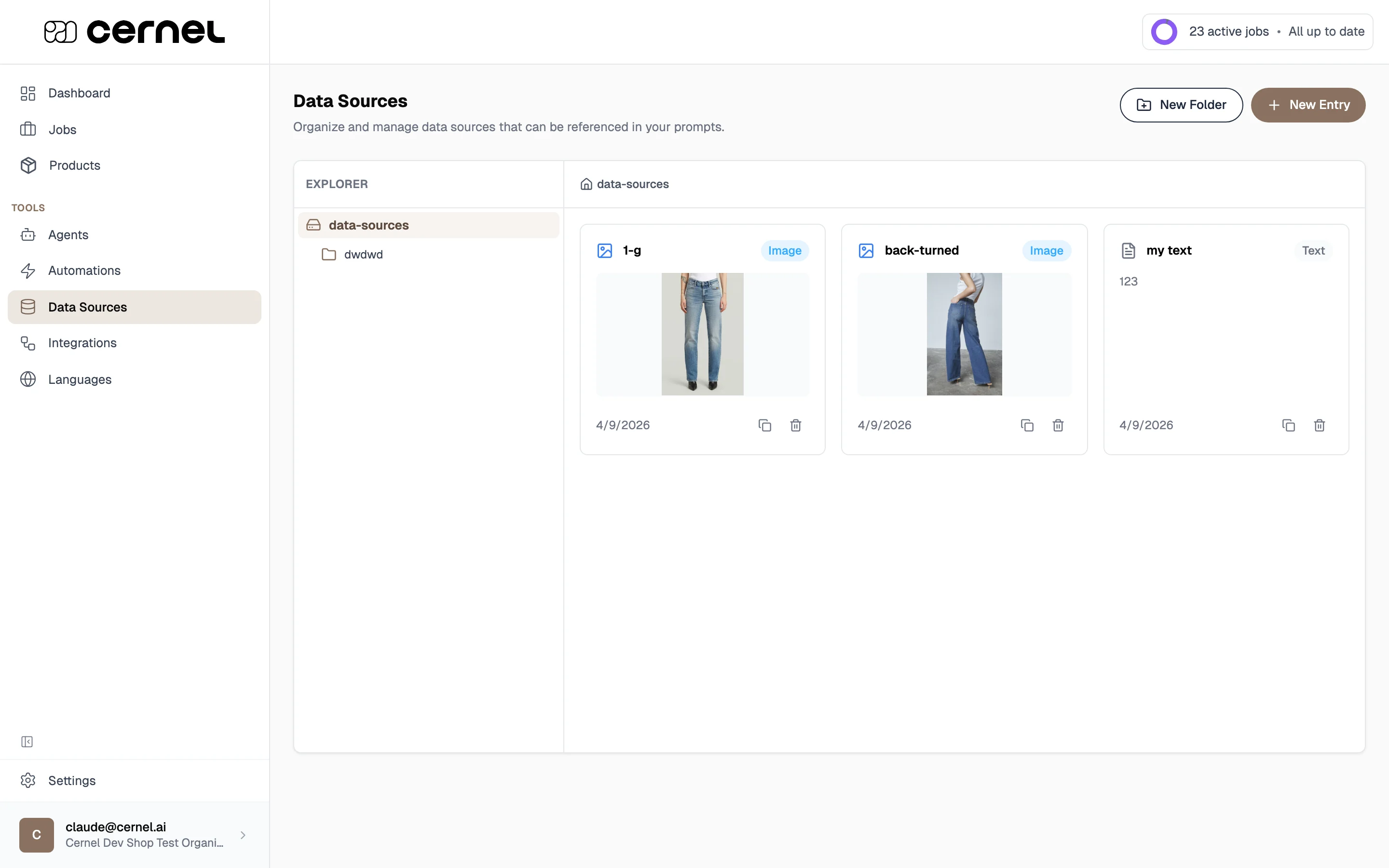
Go to Tools > Data Sources in the sidebar. You’ll see an explorer view with a folder tree on the left and a content panel on the right.
2
Create a folder
Click New Folder to organize your data sources. Give the folder a descriptive name like “Brand Guidelines” or “Product Rules”. Folders help you group related entries and keep your context library organized.
Folder and entry names determine the display name shown on the pill in the prompt editor. Choose clear, descriptive names.
3
Add entries
Select your folder, then click New Entry. You can add two types of entries:
Text entries - Paste or type your brand guidelines, product rules, audience descriptions, or any text content. You can also upload plain-text files (.txt, .md) instead of pasting.
Image entries - Upload reference images like brand logos, style guides, or product photography standards
You can also drag and drop files directly into the upload area. The drop zone lists the formats it accepts: PNG, JPG, JPEG, GIF, WEBP, SVG, TXT, and MD. If you drop a file in an unsupported format, Cernel skips it and tells you which formats are accepted, so nothing is silently discarded.
4
Use it in a prompt
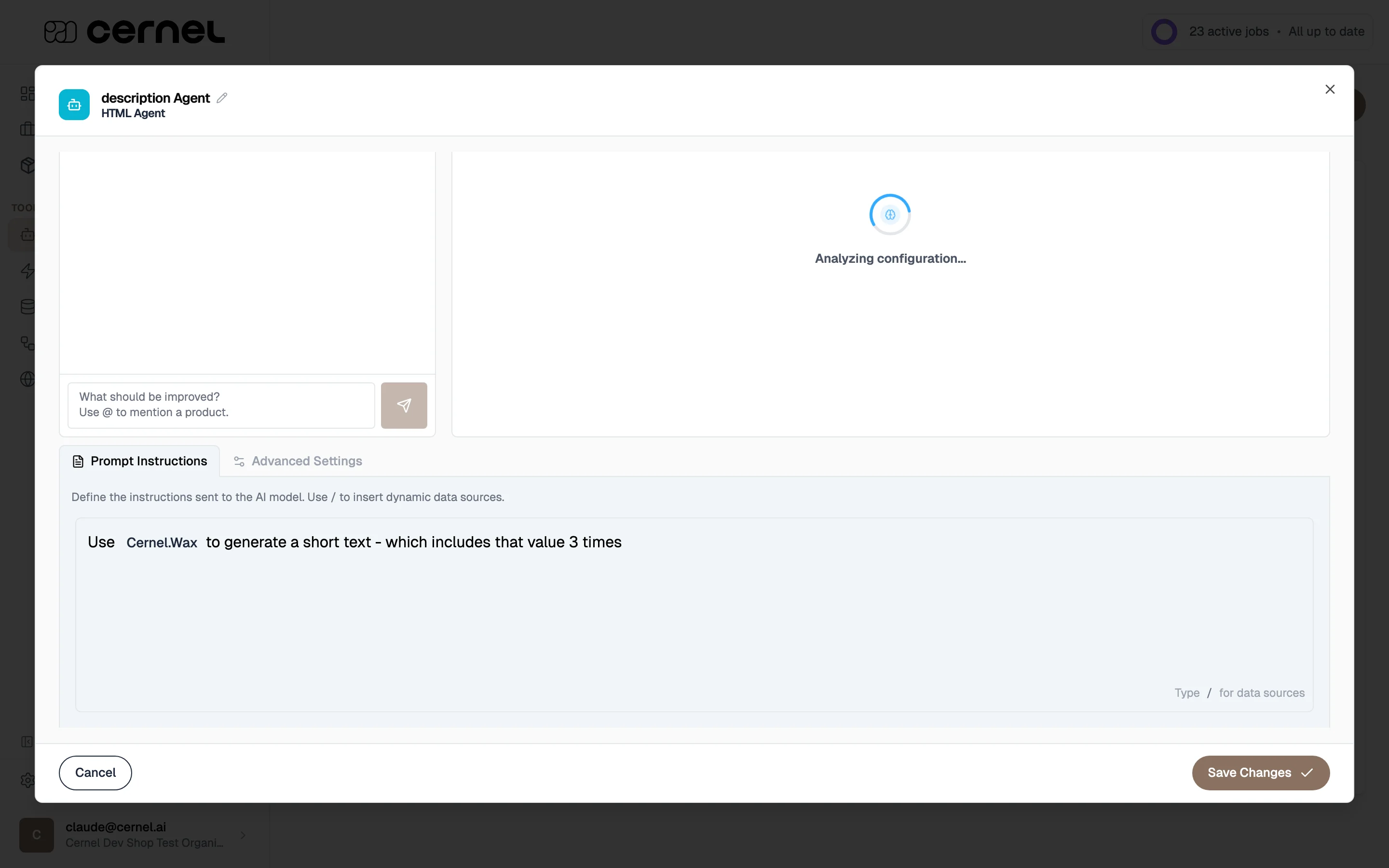
When writing an agent prompt, type / to open the reference menu. Select your Data Source entry and it appears as a styled pill in the prompt editor: a labeled badge showing the entry’s display name.
Data Source references appear as labeled pills in the prompt editor
Your Data Source is ready. Reference it in any agent prompt by typing / and selecting it from the autocomplete menu. The pill makes it easy to see which references are included at a glance.
Keep entries focused. One entry per topic is better than one massive entry covering everything. Focused entries let you reference exactly the context each agent needs, no more, no less.
Instead of “write in our brand voice,” give concrete instructions:Less effective:
“Use our brand voice when writing product descriptions.”
More effective:
“Tone: Warm and knowledgeable, like a trusted friend who happens to be an expert. Use contractions (we’re, you’ll). Address the customer directly (you, your). Avoid: superlatives (best, finest), corporate language (leverage, synergy), and exclamation marks.”
Include examples
Examples are more effective than abstract rules:
“Product description example for running shoes: ‘Built for the long run. The CloudStride features responsive foam cushioning that returns energy with every stride, while the breathable mesh upper keeps your feet cool from first mile to last. A reinforced heel counter provides stability without adding weight.’”
Navigate to any agent or attribute configuration and open the prompt editor.
2
Type / to insert a reference
In the prompt text field, type /. An autocomplete menu appears showing your available Data Sources organized by folder. Select the entry you want to insert.The reference appears as a labeled pill inline with your prompt text. When the AI runs, the pill’s content is replaced with the actual Data Source entry.A well-structured prompt with Data Source references might look like:
Write a 120-150 word product description for this product.
Follow the tone and style in Brand Voice. Write for the audience described in Brand Audience.
Apply the content rules in Footwear Rules. Check against Compliance Claims before including any claims.
Each of the references above would appear as a pill in the prompt editor, clearly distinguishable from the surrounding instructions.
You can create folders within folders to build a structured hierarchy. For example:
brand/ - Brand-level context
brand/voice - Tone of voice guidelines
brand/audience - Target audience description
legal/ - Compliance rules
legal/claims - Claims to avoid
Each entry appears as its own labeled pill in the prompt editor, making it easy to see which context is being used.
Available reference types in prompts
The / autocomplete menu offers several reference categories beyond your custom Data Sources:
Product Data - Reference all product attributes, or drill into specific ones like Product Title, Product Images, GTIN, or ID
Product Defining Attributes - Reference the values that make this product a distinct variant, such as its Size or Color. Cernel resolves these from wherever the variant axis was introduced in the product hierarchy, so a product nested under both a Size and a Color split surfaces both
Organization - Reference organization-level properties like name, language, and site domain
Existing Attributes - Reference other attribute values already generated on the same product
Custom Data Sources - Your own folder/entry references from the Data Sources library
Each reference type inserts a labeled pill in the prompt editor, visually distinct from your instruction text.
Image entries
Image entries are useful for providing visual references to AI agents - brand logos, style examples, or product photography standards. Upload images in PNG, JPG, GIF, WebP, or SVG format. You can add alt text to describe the image for accessibility and context.
Deleting a Data Source entry or folder will break any agent prompts that reference it. The reference will remain in the prompt text but won’t inject any content. Check which prompts use a reference before deleting.
Competitor information - Brands or terms to never mention
How do I update a Data Source entry?
Click on any entry card in the explorer to open the edit modal. Change the display name, content, or image, then save. All agent prompts referencing this entry will automatically use the updated content the next time enrichment runs.
Can I use multiple Data Sources in a single prompt?
Yes. Insert as many references as you need. Each / insert adds another reference. For example, you might reference both your brand voice and product guidelines in the same agent prompt.
What's the difference between Data Sources and Global Prompts?
Data Sources are context - they provide information for the AI to use (brand guidelines, product rules). Global Prompts are instructions - they tell the AI how to behave across all agents (e.g., “never use superlatives”). Use Data Sources for what to know, and Global Prompts for what to do.
What file formats can I upload?
The upload area accepts image files (PNG, JPG, JPEG, GIF, WEBP, SVG) and plain-text files (TXT, MD). The accepted list is shown directly in the drop zone. Other formats - such as PDF, Word, or spreadsheet files - aren’t supported; if you drop one, Cernel skips it and shows you which formats are accepted. For content in an unsupported format, copy the text into a Text entry instead.