

If you’re still iterating on the wording, tone, or behavior of an agent, do that work in the Agent Sandbox first, not in a full enrichment job. The sandbox runs your agent on real products, shows the AI’s reasoning, and lets you refine the prompt through chat with undo/redo and version history. Enrichment is for applying a tested agent across your catalog, not for testing.
Before you begin
To run an enrichment, you need:- Products imported: Connect an integration like Shopify or import via CSV
- A taxonomy with attributes: Products organized into categories with attributes configured
- Agents linked to attributes: At least one AI agent linked to an attribute on your categories
Step-by-step guide
1
Navigate to your products
In the sidebar under Catalog, expand the taxonomy tree and click on a category to view its products. You’ll see a product table with columns for each configured attribute.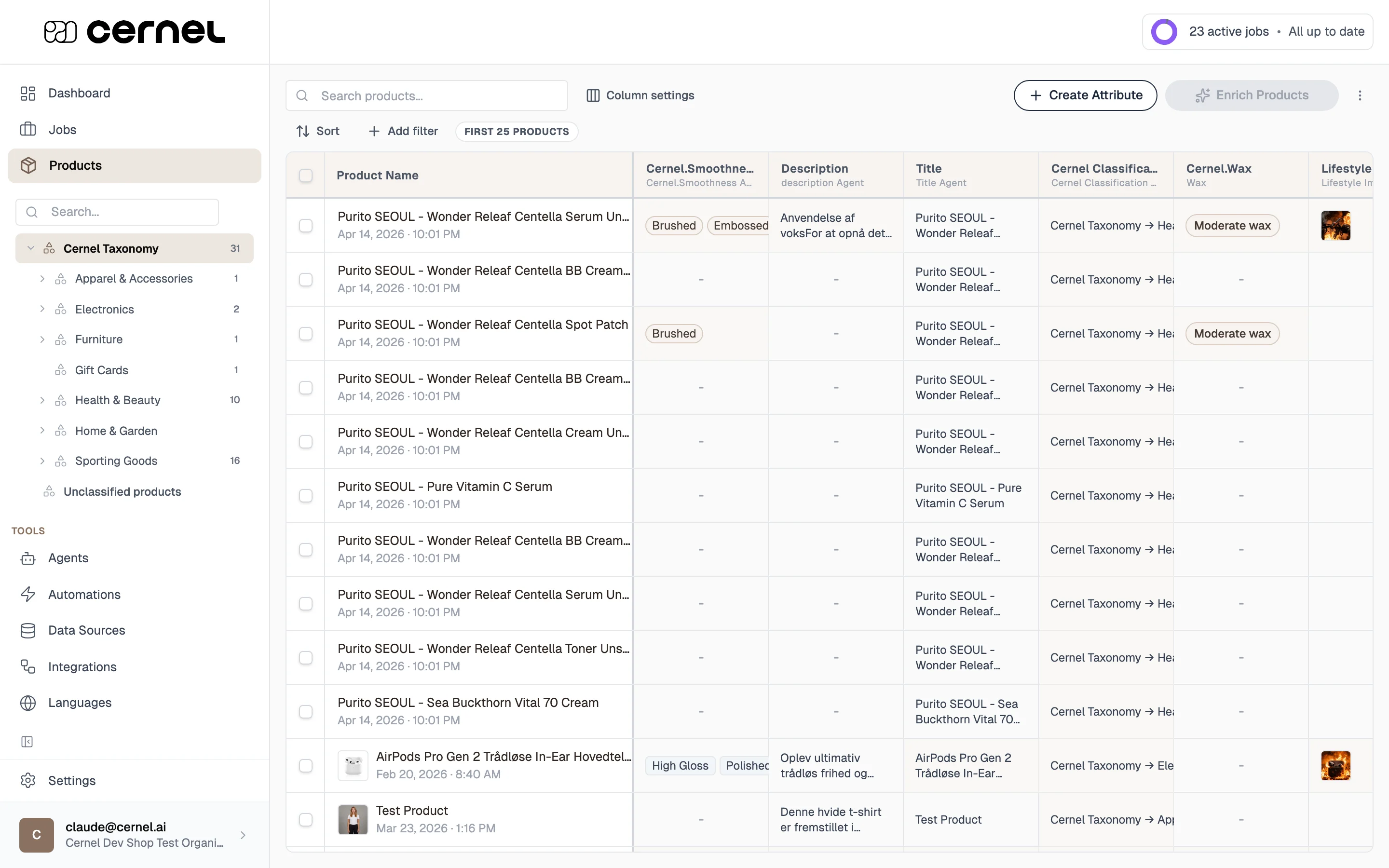
2
Select products to enrich
Use the checkboxes to select the products you want to enrich. You can select individual products or use the header checkbox to select all products in the current view.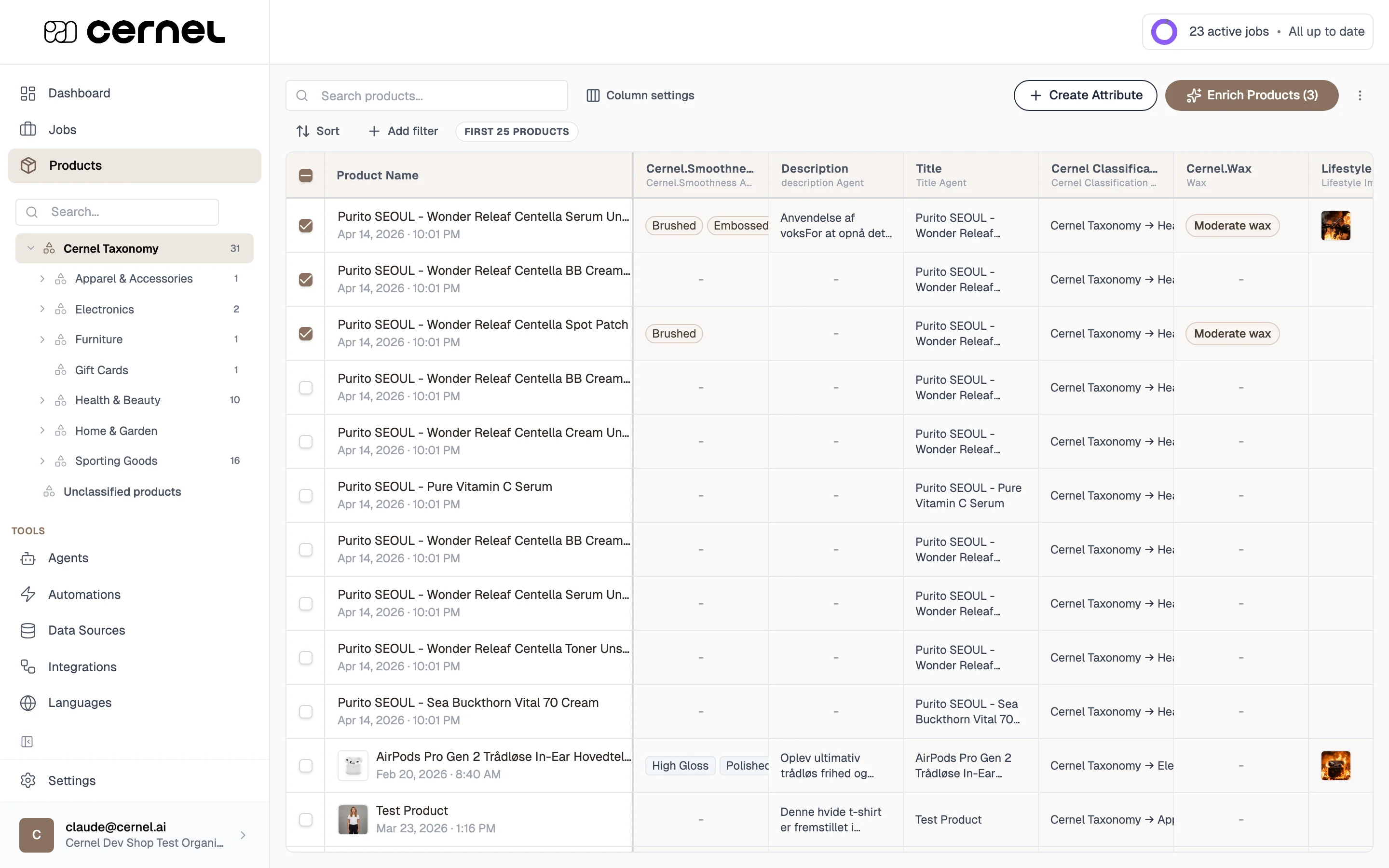
3
Open the enrichment modal
Click Enrich Products in the toolbar. The enrichment modal opens, showing the available attributes and enabled languages for your workspace.
4
Select attributes and start
Check the attributes you want AI to generate. You can search for specific attributes using the search box. Once you’ve selected your attributes, click Start Enrichment.A confirmation notification appears: “Enrichment job started for X products with Y attributes.”
5
Monitor progress on the Dashboard
Go to the Dashboard (click the Cernel logo or the Dashboard link in the sidebar). Your enrichment job appears as a card showing:
- The job name and type (e.g., “Product Enrichment | 8 products”)
- A progress indicator showing how many products have been processed
- The status: Pending, Running, or Completed
- Product thumbnails and attribute badges
6
Review the results
Once the job completes, click on the job card to open the review view. You’ll see each product with its AI-generated values displayed alongside the original data.For each attribute value, you can: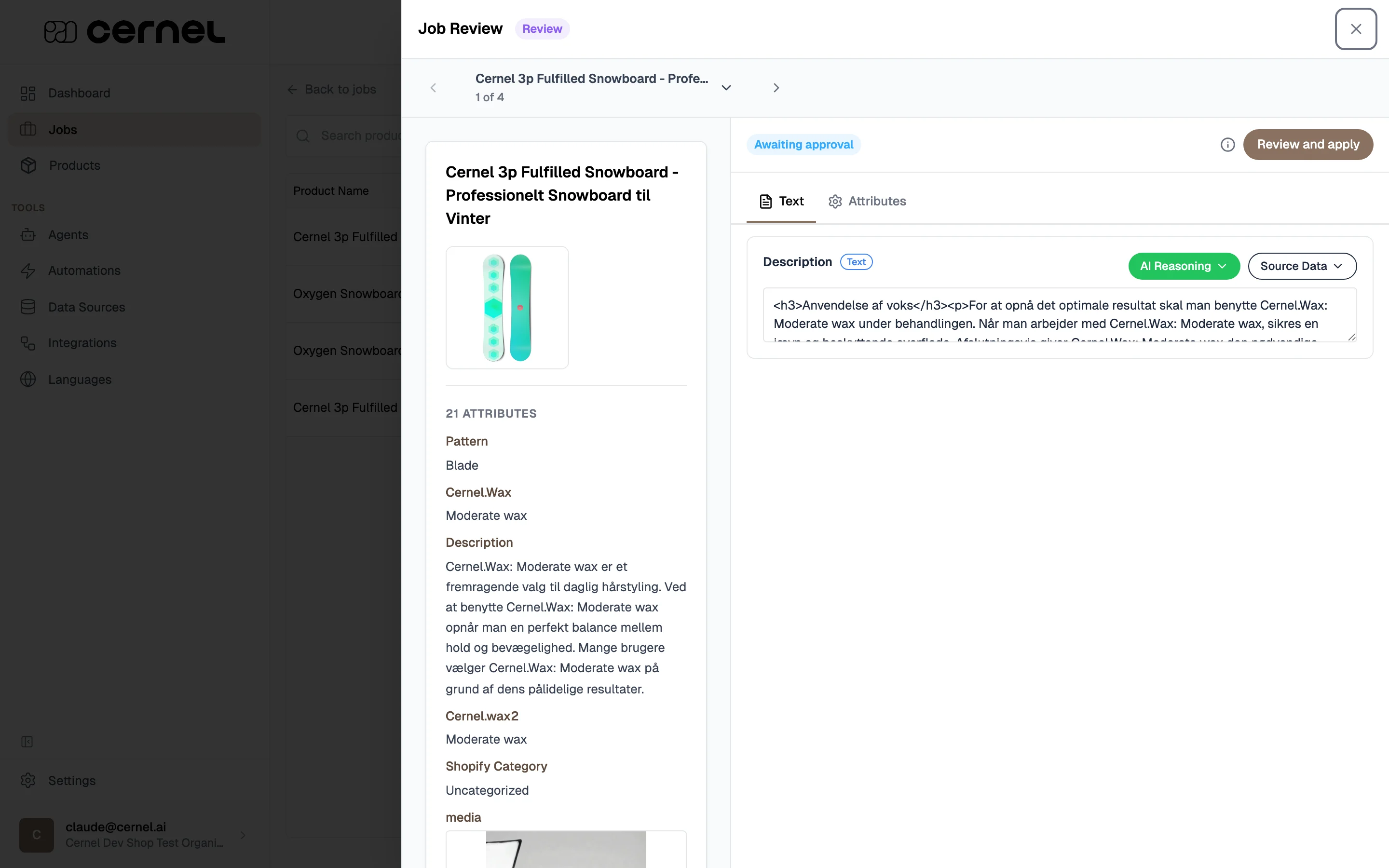
- Approve: accept the generated content as-is
- Edit: make changes before approving
- Reject: discard the generated content
You’ve completed your first enrichment. Approved content is ready to sync to your connected integrations. If you have Approve Before Push enabled in Settings > Platform, you’ll need to approve each item before it pushes to your store.
Frequently asked questions
How long does enrichment take?
How long does enrichment take?
Enrichment runs in the background, so you can keep working while it processes. Most products finish in under a minute. Text attributes are the quickest, while attributes that generate images or pull in external data can take a few minutes per product.Adding more attributes to an enrichment does not make it slower. Cernel works on all selected attributes for a product at the same time, so the total wait is only as long as the slowest one.Small batches typically complete in seconds. Larger runs across hundreds of products may take several minutes. If you have multiple enrichment jobs running at once, they may take a little longer as Cernel shares capacity fairly across your workspace. You can track progress from the Dashboard at any time.
Can I cancel a running enrichment?
Can I cancel a running enrichment?
Once an enrichment job has started, it runs to completion. If you realize the results aren’t what you expected, you can reject the generated values and re-run enrichment after adjusting your agent prompts.
What does 'Approve Before Push' do?
What does 'Approve Before Push' do?
When enabled in Settings > Platform, this setting requires you to explicitly approve every generated value before it syncs to your connected integrations. This gives you full control over what gets published. Without it, approved values sync automatically.
Why are some attributes not showing in the enrichment modal?
Why are some attributes not showing in the enrichment modal?
Only attributes with a linked AI agent appear in the enrichment modal. If an attribute is missing, go to the category’s attribute configuration and link an agent to it. See AI Agents for how to create and link agents.
What’s next
AI Agents
Refine your agent prompts and create new agents for different content types.
Attributes
Configure more attribute types and understand how they work across your taxonomy.