

How it works
The inriver integration creates a live connection between your inriver tenant and Cernel using your inriver Base URL and API Key. When you connect, Cernel reads your inriver model so it can map your fields, entity types, and relationships to its own product structure. Once connected, Cernel imports your products and keeps the connection open for pushing enriched content back. Like Shopify and Struct PIM, inriver is a bidirectional integration: data flows from inriver into Cernel and from Cernel back to inriver.Why you would use this
Two-way product sync
Map your own model
Key concept: entity types and invariant fields. inriver organises data into entity types (such as Product, Item, or SKU) linked by relationships, and some fields carry no language of their own. Cernel can’t know which types are the things you sell, which relationship is the parent-to-child descent, or which language your language-free (invariant) fields are written in, so it asks you during setup. Your answers travel with the model and you can revisit them later.
Step-by-step guide
1
Open the integration picker
Go to Tools > Integrations and click Add integration. Cernel opens the Connect your catalog picker with every supported integration as a card.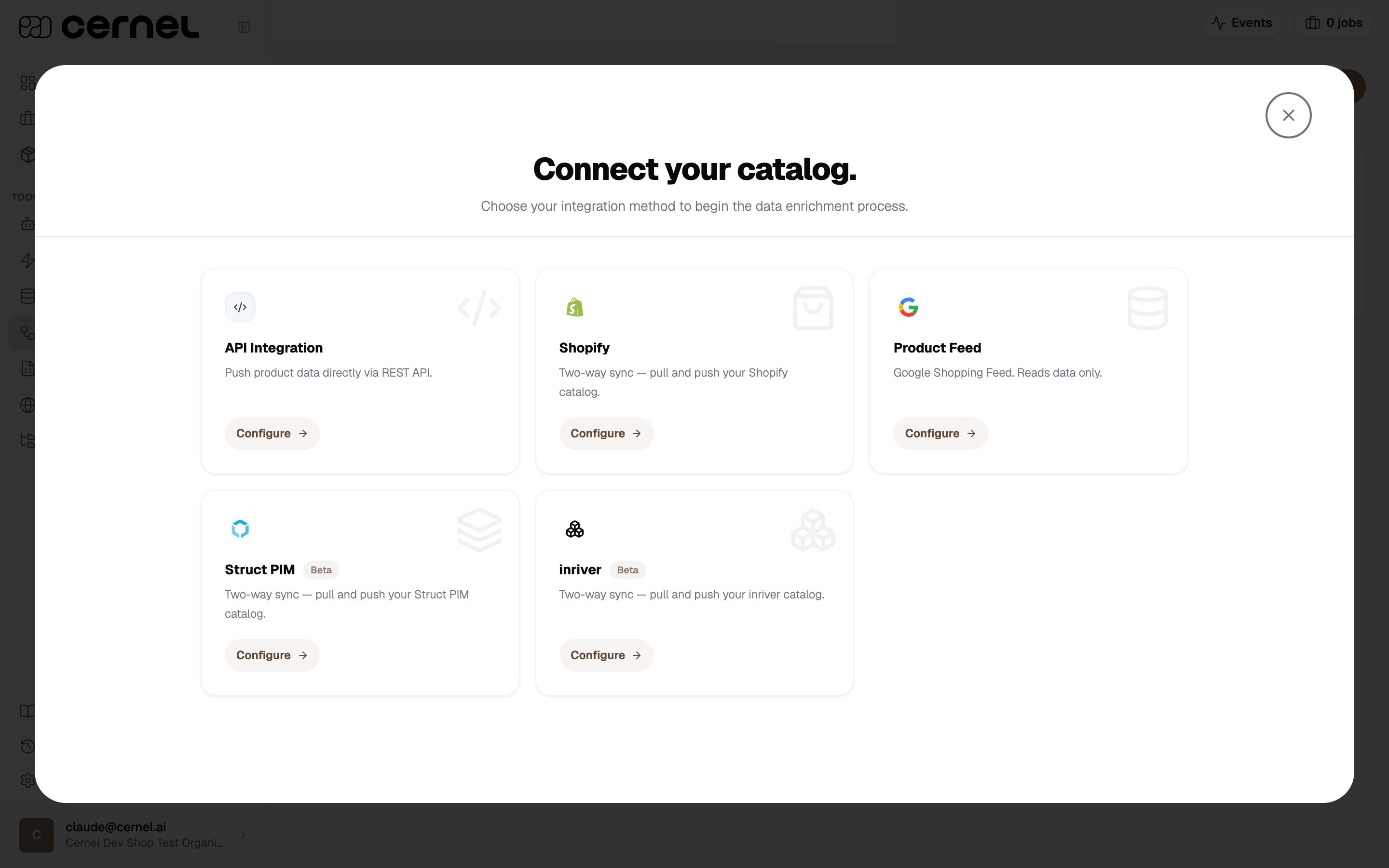
2
Choose inriver
Click Configure on the inriver card. Cernel opens the configuration form.
3
Fill in the connection details
Enter the details for your inriver tenant: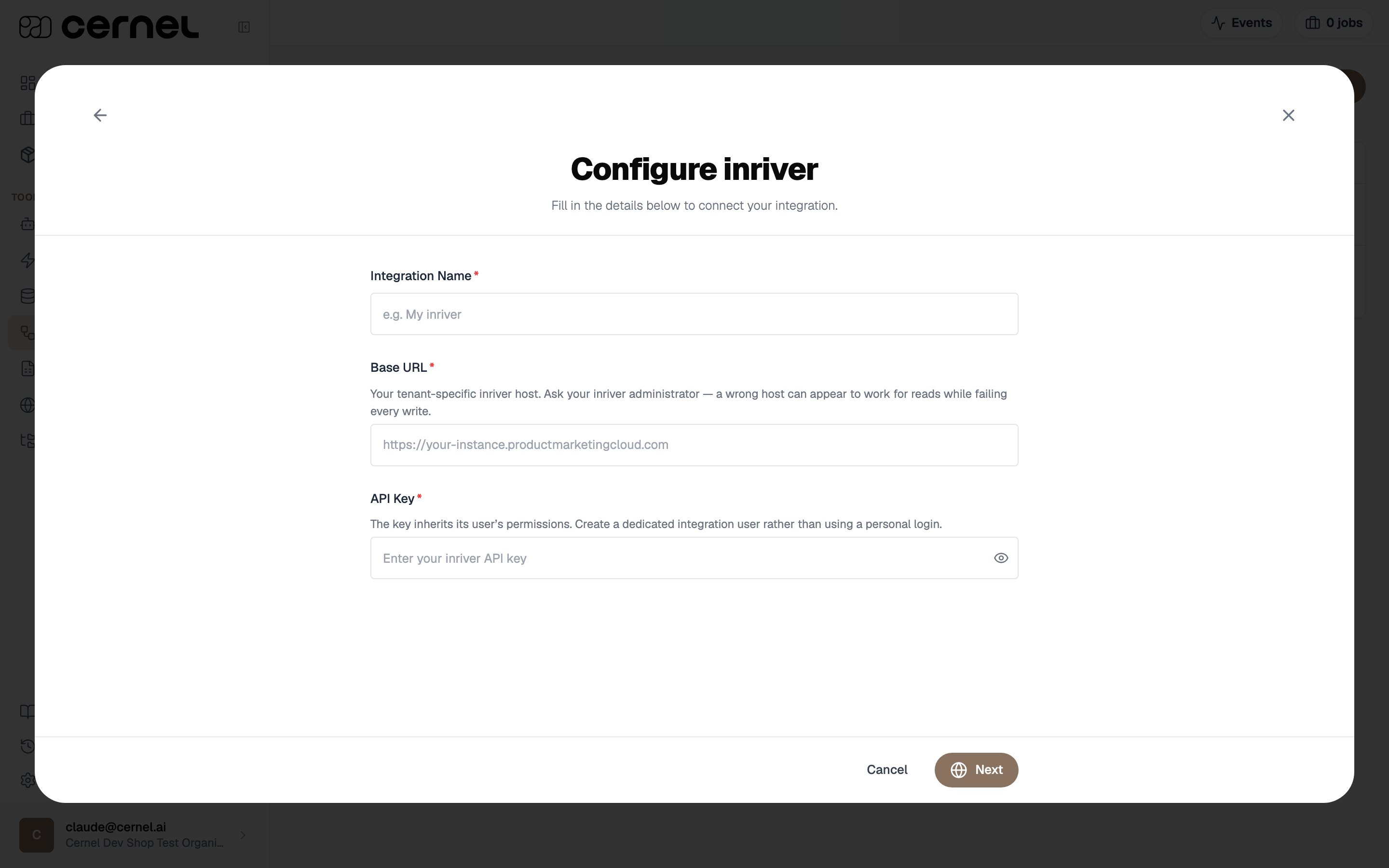
- Integration Name: A descriptive name (for example,
My inriver). - Base URL: Your tenant-specific inriver host (for example,
https://your-instance.productmarketingcloud.com). Ask your inriver administrator if you’re not sure: a wrong host can appear to work for reads while failing every write. - API Key: An inriver API key. The key inherits the permissions of the user it belongs to, so create a dedicated integration user rather than using a personal login.
4
Pick the language for invariant fields
Cernel asks which language your invariant fields are in. An invariant field carries no language of its own, such as a plain text field, a shared-list label, or an image. Cernel files each of those under one language, and inriver doesn’t say which, so you choose it here.
5
Mark which types hold your products
Cernel shows your inriver model exactly as inriver returned it and asks which types hold your products. Mark every entity type that holds a product, at any level. At least one type is required to continue.
6
Describe how your products nest
Next, tell Cernel how your products nest. For each type that has a level below it, pick the relationship inriver uses to reach that level. A type can hold several relationships to the same target, and only one of them is the parent-to-child descent, so Cernel can’t tell accessories or cross-sell links apart from the real hierarchy. You can also mark a type that is sometimes sold on its own, so one arriving without a parent becomes a product in its own right. Leave every relationship empty for a flat catalog.
7
Choose the product title field and finish
inriver has no field called a title, and Cernel won’t publish a product without one. Cernel lists your inriver fields grouped by the types you’re importing. Pick one field per type to use as the product title.This is the last step. Clicking through creates the integration and starts the import.
Your inriver integration appears under Tools > Integrations. Products begin arriving in your Catalog and are ready for enrichment.
Integration overview
After connecting, the integration appears in Tools > Integrations with these properties:
Click Settings on your inriver integration to access quick actions:
- View Integration Details: Open the full configuration panel
- Integration Enabled: Toggle the integration on or off without removing it
- Sync Remote Properties: Refresh the list of inriver fields Cernel knows about, so new fields become available to map
- Reset Integration: Reapply mappings or restart the export (see Resetting the integration)
- Remove Integration: Disconnect the tenant entirely
Property mapping
Like every Cernel integration, the inriver connection has a Property Mapping view that controls how data flows between inriver fields and Cernel attributes. Open the mapping view from the integration detail panel. The mapping interface shows three columns: From inriver (source fields), Cernel Attributes (your catalog), and To inriver (output fields). Map a source field to a Cernel attribute to import data, and map a Cernel attribute to a target field to push enriched content back. If a field you expect is missing, use Sync Remote Properties to refresh the list from inriver. For more on mapping, see the field mapping section of the Shopify integration guide. The workflow is the same.Sync behavior
Importing changes from inriver
After setup, Cernel keeps your catalog up to date automatically. It checks inriver for changed products in the background on a schedule and re-imports only what changed since the last check, so day-to-day syncs stay efficient regardless of catalog size. Products arrive as the entity types and hierarchy you mapped during setup, with child entities imported as variants or child products under their parents.Pushing enriched content to inriver
There is no manual export step. When a value is approved in Review (or applies directly, because the job ran without review), Cernel pushes it back to inriver in the background. Each language pushes to its matching inriver language, and images are added to the product as new media. Values that were imported from inriver are never echoed back; only content enriched or edited in Cernel is pushed.Cernel never writes to a read-only inriver field. If a mapped field is read-only in inriver, inriver’s own interface would refuse the write, so Cernel skips it rather than pushing a value that can’t be saved.
Resetting the integration
Day-to-day syncing is automatic, so you rarely need to reset. When you do, open the Settings dropdown on the integration and choose Reset Integration. The dialog offers these actions:- Reapply mappings: Re-run the current property mappings on the products already in Cernel. This is faster than a full restart because it does not re-fetch anything from inriver, it just reapplies your latest mapping to the data you already have.
- Restart export: Send your enriched Cernel values to inriver again. Use the Send changes since field to control the scope: leave it on Everything to re-push all mapped values, or pick a date to re-push only the values changed since the start of that day (in your timezone).
Restarting the import isn’t available for inriver yet. To refresh the products already in Cernel, use Reapply mappings, which re-runs your current mappings on the data Cernel already holds.
What data syncs
Languages
The integration’s languages come from inriver. During setup you also choose a default language for invariant fields, the fields that carry no language of their own. Cernel files every invariant field under that language, so pick the language those fields are actually written in, and ideally the language your organization enriches in, so your agents read them.Frequently asked questions
Where do I get the Base URL and API key?
Where do I get the Base URL and API key?
The Base URL is your tenant-specific inriver host (for example
https://your-instance.productmarketingcloud.com); ask your inriver administrator if you’re unsure, because a wrong host can read data while silently failing every write. Generate the API key in inriver under a user that has read and write access to the products and fields you want Cernel to manage. The key inherits that user’s permissions, so create a dedicated integration user rather than using a personal login.Why does Cernel ask which types are products and how they nest?
Why does Cernel ask which types are products and how they nest?
inriver’s model is generic: the same entity types and relationships can mean different things in different tenants. Cernel can’t know which of your types are the things you sell, or which relationship is the real parent-to-child descent rather than an accessory or cross-sell link, so it asks you to mark the product types and pick the descending relationship during setup. Leave the relationships empty if your catalog is flat.
What are invariant fields, and why do I pick a language for them?
What are invariant fields, and why do I pick a language for them?
An invariant field carries no language of its own: a plain text field, a shared-list label, or an image. Cernel files each one under a single language, and inriver doesn’t say which, so you choose it during setup. Pick the language your organization enriches in, because agents read products in that language; a field filed under a different language won’t be seen during enrichment.
Can I re-import everything from inriver?
Can I re-import everything from inriver?
Not yet. Restart import isn’t available for inriver. To refresh the products already in Cernel, open Settings > Reset Integration and use Reapply mappings, which re-runs your current mappings on the data Cernel already holds. Day-to-day changes in inriver still sync automatically in the background.
Does Cernel write to read-only inriver fields?
Does Cernel write to read-only inriver fields?
No. If a mapped field is read-only in inriver, Cernel skips it. inriver’s own interface would refuse the write, so Cernel does not attempt it.
What happens if I disable the integration?
What happens if I disable the integration?
Products already imported into Cernel remain in your catalog, but no new syncs run in either direction. Re-enable the integration to resume syncing.
How do I disconnect inriver?
How do I disconnect inriver?
Open the Settings dropdown for the integration and click Remove Integration. The connection to inriver is removed and no further syncs run. Your inriver tenant is never modified: no data is deleted from inriver.The removal dialog includes a Delete imported products option that is turned on by default. While it is on, removing the integration also permanently deletes the products that were imported through it from your Cernel catalog.