Connect Cernel to your Struct PIM workspace for two-way product sync: pull your catalog, enrich it with AI, and push enriched content back.
Cernel connects directly to your Struct PIM workspace for two-way product sync. Pull your full product catalog into Cernel, enrich it with AI, and push the results back to Struct PIM, without leaving the platform.
The Struct PIM integration creates a live connection between your PIM and Cernel using your Struct PIM Base URL and API Key. Once connected, Cernel imports your products and keeps the connection open for pushing enriched content back.Like Shopify, Struct PIM is a bidirectional integration: data flows from Struct PIM into Cernel and from Cernel back to Struct PIM.
Pull products from Struct PIM and push enriched content (descriptions, structured attributes, media) back to the same PIM.
Target a specific dimension
If you organise your catalog into dimensions, point Cernel at the exact dimension you want to enrich and ignore the rest.
Key concept: Dimension. Struct PIM uses dimensions to slice the same catalog by market, channel, or audience. Cernel can target one specific dimension when exporting data so enriched content lands exactly where you need it. You choose dimensions during setup and can change them later from the integration detail panel.
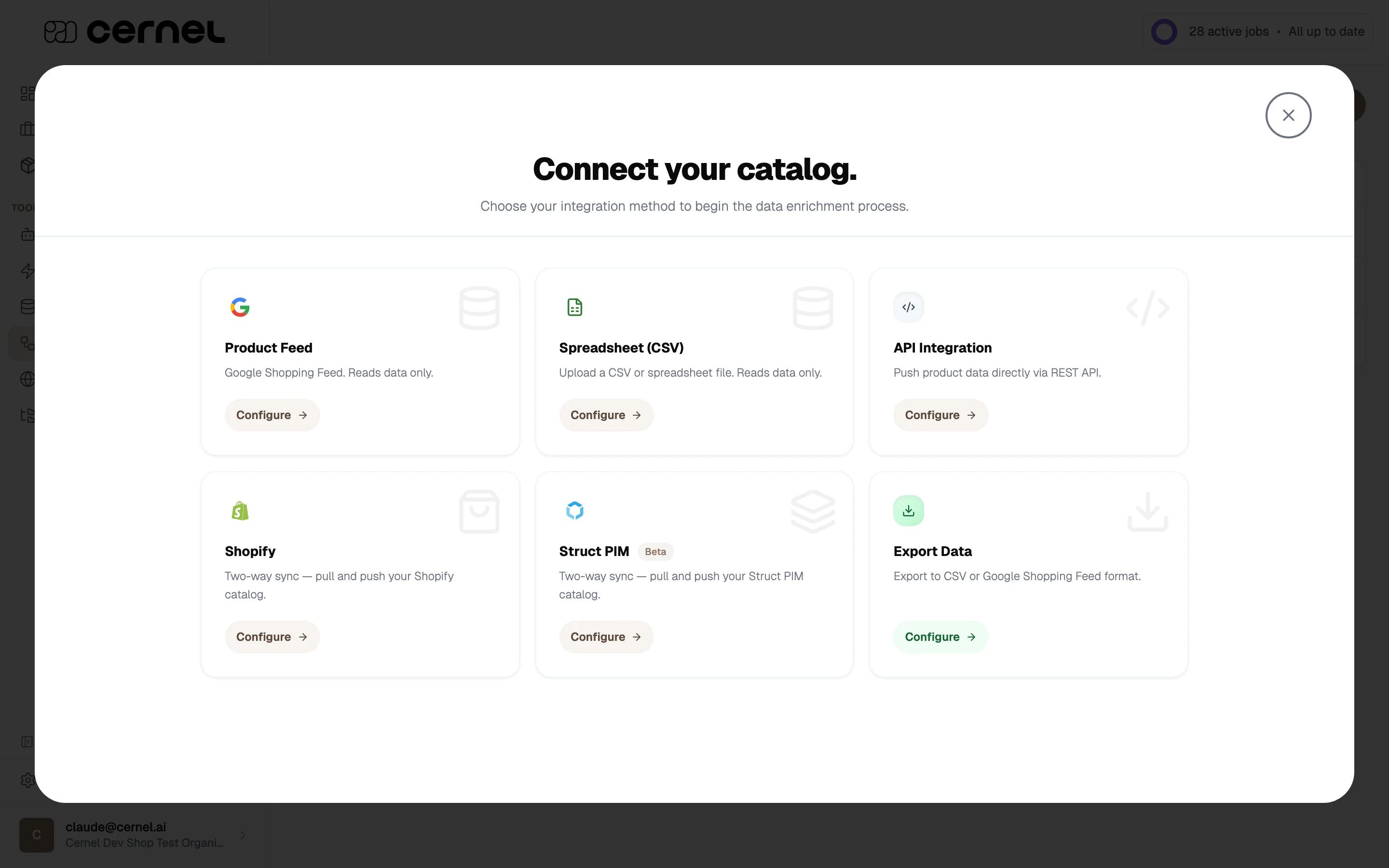
Go to Tools > Integrations and click Add integration. Cernel opens the Connect your catalog picker with every supported integration as a card.
2
Choose Struct PIM
Click Configure on the Struct PIM card. Cernel opens the configuration form.
3
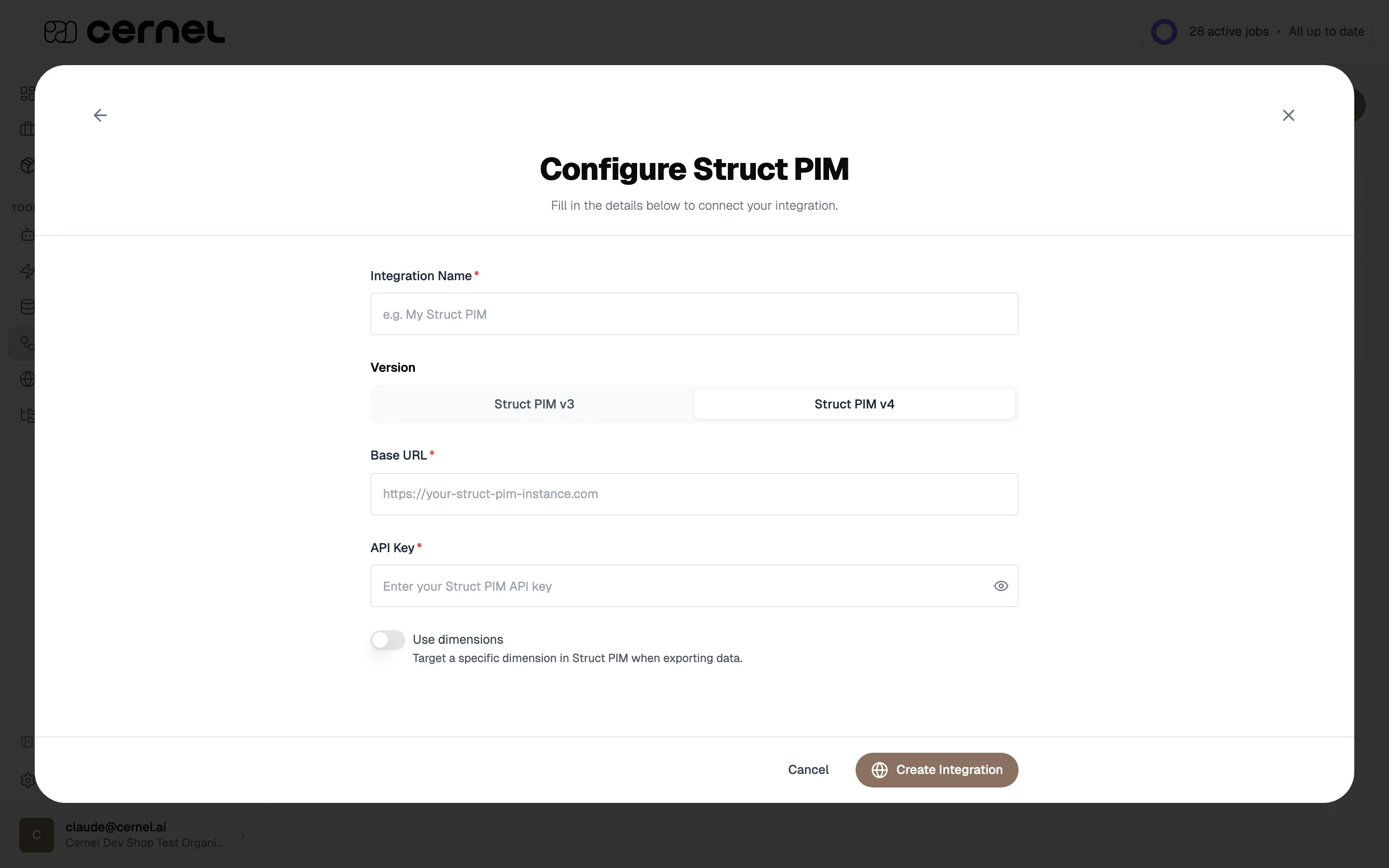
Fill in the configuration
Enter the details for your Struct PIM workspace:
Integration Name: A descriptive name (for example, My Struct PIM).
Version: Pick Struct PIM v3 or Struct PIM v4 depending on which version your workspace runs.
Base URL: The base URL of your Struct PIM instance (for example, https://your-struct-pim-instance.com).
API Key: A Struct PIM API key with read and write access to the products and dimensions you want Cernel to manage.
Cernel stores the API key only long enough to verify the connection and fetch dimensions. You’ll need to re-enter the key later if you want to refresh the dimension list.
4
Pick the dimensions to target (optional)
Toggle Use dimensions on if you want Cernel to target a specific dimension in Struct PIM when exporting data. With the toggle on, click Fetch dimensions: Cernel calls Struct PIM with the Base URL and API Key you entered and lists the available dimensions. Select one or more dimensions from the multi-select.Leave Use dimensions off if you want Cernel to work against your workspace without scoping exports to a dimension.
5
Create the integration
Click Create Integration. Cernel connects to Struct PIM and starts importing your products.
Your Struct PIM integration appears under Tools > Integrations. Products begin arriving in your Catalog and are ready for enrichment.
The steps above start from Cernel. You can also start from Struct PIM’s own App store and install Cernel as an app there. This suits a Struct admin who wants to connect Cernel without first entering a Base URL and API key by hand.
The app and the integration are the same connection, reached two ways. Installing and connecting the Cernel app inside Struct PIM creates (or adopts) the same Struct PIM integration described on this page. The difference is that Struct hands Cernel the Base URL and API key automatically as part of the install, so there’s nothing to copy across.
1
Open Struct PIM's App store
In Struct PIM, go to Settings > Integration > Apps, then open the App store.
2
Open the Cernel app listing
Find Cernel AI enrichment and click View app. Struct lists what the app installs and the API permissions it grants Cernel (reading your catalog and creating assets), which is what lets Cernel import your products and push enriched images back as new assets.
3
Install the app
Click Install app. Struct PIM installs it and opens the app’s Setup tab.
A confirmation appears and the app shows under Struct’s installed apps.
The Setup tab shows a Client credentials panel (a client ID and secret) that Struct generated for this app instance. These secure the connection between Struct and Cernel automatically. There’s nothing here to copy into Cernel and nothing to configure.
4
Connect the app to your Cernel organization
Switch to the Connect tab and click Connect Struct PIM. This opens a Cernel window that already knows which Struct PIM instance is asking to connect.
If you’re not signed in to Cernel, you’ll see a short contact form instead (company name, website, your name, work email), because Cernel isn’t self-serve sign-up. Leave your details and the Cernel team will reach out to set things up. If you already have a Cernel account, click Sign in on that same screen and log in.
5
Confirm the connection
Once you’re signed in, Cernel shows which Struct PIM tenant is about to be connected to which Cernel organization. Check it, then click Connect Struct PIM.
Only one Cernel organization can connect to a given Struct PIM instance. Confirming here links that Struct tenant to whichever Cernel organization you’re signed into, so make sure it’s the right one before you continue.
The window shows Struct PIM is connected, and back in Struct PIM a new Cernel tab appears in the top navigation. Opening it loads the full Cernel app (Dashboard, Products, Agents, Automations, Integrations, and the rest) embedded inside Struct PIM.
If you’d already set up the Struct PIM integration from Cernel’s side (the guide above) before installing the app, connecting adopts that existing integration rather than creating a second one against the same PIM, so you won’t end up with duplicate products.
Removing the app from Struct PIM’s App store does not disconnect or delete anything on the Cernel side. The integration keeps syncing until you disable or remove it from Tools > Integrations in Cernel.
You can change the dimensions Cernel targets at any time without recreating the integration. Open the integration detail panel and find the Struct PIM Dimensions section.
1
Re-enter your API key
The Base URL is already filled in. Re-enter your Struct PIM API key: Cernel doesn’t store the key after the initial fetch, so you’ll need it again to refresh the dimension list.
2
Fetch the dimensions
Click Fetch dimensions. Cernel lists every dimension available in your workspace.
3
Reselect and save
Select the dimensions you want to target, then click Save dimensions. Cernel confirms the change and resyncs so the new mappings apply.
Saving new dimensions triggers a resync of the integration. Plan the change for a moment when a fresh import won’t interrupt active enrichment work.
Like every Cernel integration, the Struct PIM connection has a Property Mapping view that controls how data flows between Struct PIM fields and Cernel attributes. Open the mapping view from the integration detail panel.The mapping interface shows three columns: From Struct PIM (source fields), Cernel Attributes (your catalog), and To Struct PIM (output fields). Map a source field to a Cernel attribute to import data, and map a Cernel attribute to a target field to push enriched content back.For more on mapping, see the field mapping section of the Shopify integration guide. The workflow is the same.
After setup, Cernel keeps your catalog up to date automatically. It continuously checks Struct PIM for changed products in the background, and updated products typically appear in Cernel within a minute. Only products that changed since the last check are re-imported, so day-to-day syncs stay fast regardless of catalog size.Archived products are not imported. Products and variants in every other state are.
Change detection works at the product level. A change made only to a variant, with no change to its parent product, is not picked up on its own. The variant’s changes come through the next time the parent product itself changes in Struct PIM.
There is no manual export step. When a value is approved in Review (or applies directly, because the job ran without review), Cernel pushes it to Struct PIM automatically in the background, typically within a minute. Both product-level and variant-level values are pushed. Values that were imported from Struct PIM are never echoed back; only content that was enriched or edited in Cernel is pushed.
Push-back works on both Struct PIM v3 and Struct PIM v4. Struct PIM v3 reaches end of life at the end of 2026, so we recommend v4 for new connections.
Day-to-day syncing is automatic, so you rarely need to reset. When you do, open the Settings dropdown on the integration and choose Reset Integration. The dialog offers three actions:
Reapply mappings: Re-run the current property mappings on the products already in Cernel. This is faster than a full restart because it does not re-fetch anything from Struct PIM, it just reapplies your latest mapping to the data you already have.
Restart import: Re-import every product from Struct PIM. Processing time scales with catalog size and can take a while for large workspaces. Use this after a change that a normal sync would not pick up, such as bringing in a variant edit that never touched its parent product.
Restart export: Send your enriched Cernel values to Struct PIM again. Use the Send changes since field to control the scope: leave it on Everything to re-push all mapped values, or pick a date to re-push only the values changed since the start of that day (in your timezone). This is useful if a push was interrupted or you want to force Struct PIM back into step with Cernel.
Resetting only affects the sync. It never deletes products from Struct PIM, and Restart export never sends values that were imported from Struct PIM back to the workspace, only content enriched or edited in Cernel.
Written to the mapped Struct PIM number or boolean attribute
Lists
Written as list values
Global List values
Matched against the values already defined in your Global List
Images
Uploaded to Struct PIM as new assets and added alongside the images already on the product
Dimension-segmented values
Pushed into the dimensions selected on the integration
Per-language values
Each language pushes to the matching Struct PIM language
Variant values
Pushed to the variant, with the same coverage as product values
Cernel cannot create new Global List values. A pushed value must match a value that already exists in the Global List; values that don’t match are skipped for that product (the rest of the product’s data still syncs), and the skip is recorded as an integration event.
Files and videos are not synced in either direction; media support covers images.
Business Rules and Workflows: Cernel writes attribute values only. It does not trigger, manage, or update Business Rules, Workflows, or workflow states in Struct PIM.
References other than variants are not resolved. Product references import as IDs, and Publications, Catalogues, and external assets are not natively worked with.
The integration’s languages come from Struct PIM, and its primary language is the first language in your Struct PIM language list (see Settings > Languages in Struct PIM). Cernel adopts the primary language when the integration is created, and it cannot be changed afterwards.
Because the integration’s primary language cannot be changed, your Cernel organization must be created with the same primary language as your Struct PIM workspace. Check your Struct PIM language list before setting up the organization.
Both Struct PIM v3 and Struct PIM v4. Pick the matching version during setup using the Version segmented control. Cernel uses the right API for the version you select, and both versions support importing your catalog and pushing enriched content back.Struct PIM v3 reaches end of life at the end of 2026, so we recommend Struct PIM v4 for new connections.
Why isn't a change I made to a variant showing up in Cernel?
Cernel detects changes at the product level. If you change only a variant in Struct PIM, without any change to its parent product, the update is not picked up on its own. It comes through the next time the parent product changes. To bring it in sooner, make any edit to the parent product in Struct PIM, or use Restart import on the integration to re-import everything.
If I delete a product in Struct PIM, does it disappear from Cernel?
No. Cernel’s Struct PIM sync only pulls products that are new or changed since its last check, so a product you delete or archive in Struct PIM simply stops syncing. The copy already imported into Cernel stays in your catalog until you remove it there yourself. To take it out of Cernel, delete the product in Cernel directly, or remove the integration if you want to clear everything it imported.
Can Cernel add new values to a Global List?
No. Cernel only uses the values already defined in your Global List. When pushing a Global List attribute, the Cernel value must match an existing entry; values that don’t match are skipped for that product and recorded as an integration event, while the rest of the product’s data still syncs. Add the missing value in Struct PIM first, then re-approve the value in Cernel.
Where do I get a Struct PIM API key?
Generate the API key in your Struct PIM admin under the user or system-user permissions that have read and write access to the products and dimensions you want Cernel to manage. Cernel only uses this key to read your catalog and push enriched content back; it isn’t stored after the initial fetch.
Do I have to use dimensions?
No. Dimensions are optional. Leave the Use dimensions toggle off to let Cernel work against your workspace without scoping exports to a dimension. Turn it on only if you want to target a specific dimension when pushing enriched data back to Struct PIM.
Can I change the targeted dimensions after setup?
Yes. Open the integration detail panel and use the Struct PIM Dimensions section to re-enter your API key, fetch the current list of dimensions, reselect them, and save. Cernel resyncs the integration with the new dimension mappings.
What happens if I disable the integration?
Products already imported into Cernel remain in your catalog, but no new syncs run in either direction. Re-enable the integration to resume syncing.
Does resetting the integration delete products from Struct PIM?
No. Resetting only re-runs the sync in Cernel: Restart import re-fetches products from Struct PIM, Reapply mappings reuses the data already in Cernel, and Restart export re-pushes your enriched values. Your Struct PIM workspace is never modified by a reset. See Resetting the integration.
How do I disconnect Struct PIM?
Open the Settings dropdown for the integration and click Remove Integration. The connection to Struct PIM is removed and no further syncs run. Your Struct PIM workspace is never modified: no data is deleted from Struct.The removal dialog includes a Delete imported products option that is turned on by default. While it is on, removing the integration also permanently deletes the products that were imported through it from your Cernel catalog.
Turn off “Delete imported products” if you want to keep your catalog in Cernel. Because the option is enabled by default, removing an integration without changing it will permanently delete every product that was imported through that integration. This cannot be undone. If you only want to stop syncing, disable the integration instead of removing it.
Do I still need a Base URL and API key if I install Cernel from Struct PIM's App store?
No. When you connect the app from inside Struct PIM, Struct hands Cernel the Base URL and API key automatically as part of the install, so there’s nothing to copy in by hand. Use the manual Add integration > Struct PIM flow above if you’d rather enter those yourself.
What happens if I already have a Struct PIM integration and then install the app?
Cernel recognizes the integration already pointed at that Struct PIM tenant and attaches the app connection to it instead of creating a new one. Your existing setup, mappings, and sync history are unaffected, and you won’t get duplicate products.
Does uninstalling the app in Struct PIM stop the sync?
No. Uninstalling the app removes only Struct’s side of the connection. The Struct PIM integration in Cernel keeps running until you disable or remove it yourself from Tools > Integrations.
Can I use the App store install with Struct PIM v3?
Installing the app always sets up the integration against Struct PIM v4. If your workspace runs Struct PIM v3, use the manual Add integration > Struct PIM flow above instead, where you select the Struct PIM v3 version yourself.