
The Completeness Score shows how much of the product data a category expects is actually filled in. Turn on Insights in your Catalog and the category gets a completeness figure, and every tracked attribute column shows how many of the category’s products have a value for it. This means you can spot the gaps in your catalog at a glance and see which attributes to enrich next, instead of opening products one by one to guess.

How it works

Completeness answers one question: of the attribute values this category’s products should carry, how many are filled in? Cernel measures it against the attributes you track, so the figure reflects the data that matters to you and leaves the rest out. You see completeness in three places:
  • In the Catalog, turning on Insights opens a banner above the products with the category’s Completeness, and adds a fill figure to each tracked attribute column header, for example 62% on Material.
  • On the Attributes page (Tools > Attributes), the Completeness column shows how filled each attribute is across the taxonomy you pick. See The Attributes page.
  • On a single product’s detail page, the Completeness ring shows the same idea for that one product, measured against a category you choose. See Product detail.

Why you would use this

See the gaps without hunting for them

A completeness figure on the category and a fill figure on every tracked column tell you where data is missing, so you stop scrolling the catalog to find the holes.

Measure what matters to you

Completeness counts only the attributes you track, so a category’s figure reflects the data you actually care about, not every field a product could carry.

Know what to enrich next

An attribute that is filled on only a fraction of products is an obvious next run. The column fill figures point you straight at it.

Track progress over time

As you enrich, the figures climb, so completeness doubles as a simple measure of how far a category has come.
Key concept: tracked attributes. Tracked attributes are the ones completeness is measured against. A category can carry many attributes, but only the tracked ones count towards its figure. Tracking is set per attribute for your whole organization: a tracked attribute counts in every category that uses it, in every taxonomy. Stop tracking the ones you do not need, so they do not dilute the picture.
Completeness follows a product’s classification. A product is measured against the category it is classified into: that category sets which tracked attributes are expected, and that is what completeness, and the filters built on it, are measured against. Because a product can be classified in more than one taxonomy, completeness is calculated per taxonomy, and separately per market, so the same product can score differently in a different taxonomy or a different market. A product with no classification has no category to measure against.

Separate setup from running

Completeness also tells you what to enrich next. The Completeness filter narrows the catalog to the products that still have gaps, and the enrichment flow lets you select every attribute at once, so filling those gaps becomes a single repeatable action. This cleanly separates two different jobs:
  • Configuration is set up once: which agents run, which attributes are tracked, and how prompts are written.
  • Operations is the ongoing work of keeping the catalog complete: filter to what is incomplete, select all the attributes, and enrich only what is missing.
Because the two are separate, the person keeping the catalog complete does not have to touch any agent or attribute configuration. They filter, select, and run. You can also apply the same Completeness filter in an Automation, so gap-filling runs without anyone starting it by hand.

Step-by-step guide

1

Open a category in the Catalog

Go to the Catalog and select a category in the taxonomy tree. Completeness is measured per category, and the taxonomy’s top-level category has a figure of its own too. Unclassified products has no category to measure against, so Insights is not offered there.
2

Turn on Insights

Switch on Insights at the right end of the toolbar. A banner opens above the products, and the tracked attribute column headers gain a fill figure. Cernel remembers your choice the next time you open the Catalog.The banner shows, from left to right:
  • The Completeness ring and percentage for the category, marked Across all levels.
  • The category’s name, with how many of its attributes are tracked and how many are not, for example 12 tracked and 5 not tracked. The info icon beside them links to Manage attributes.
  • A market picker, when your organization has more than one market. The figures switch to the market you pick.
  • Search demand, with the number of open recommendations for the category. It appears on categories Cernel has search demand data for, and opens the category in Search demand.
If the banner shows a dash instead of a percentage, the category has not been measured yet. Use Reload completeness and recommendations, the refresh icon beside the figure, to load the latest reading. Its tooltip says when the category was last measured.
3

Read the column headers

Each tracked column header shows the share of the category’s products that have a value for that attribute, as a percentage beside the agent’s name and as a bar along the bottom of the header. Hover it to read the full sentence, for example 62% of the products in this category have a value for Material. Tracked columns have a beige header; untracked columns stay white and carry no figure.A sparkle in the corner of a header means there are open recommendations for that attribute. Click it to open Recommendations for [attribute], which lists each recommendation with the searches at stake and a Review link into Search demand.
4

Choose which attributes are tracked

You can change tracking from the catalog or from the Attributes page:
  • From a column. Click an attribute’s column header to open its menu. With Insights on, the menu has a Track in completeness switch. With Insights off, it offers Track in completeness metrics or Stop tracking in completeness metrics.
  • On the Attributes page. Go to Tools > Attributes and flip the attribute’s Tracked switch. The page lists every attribute with its Completeness, and the scope filter shows the ones that are Tracked here or Not tracked. See The Attributes page.
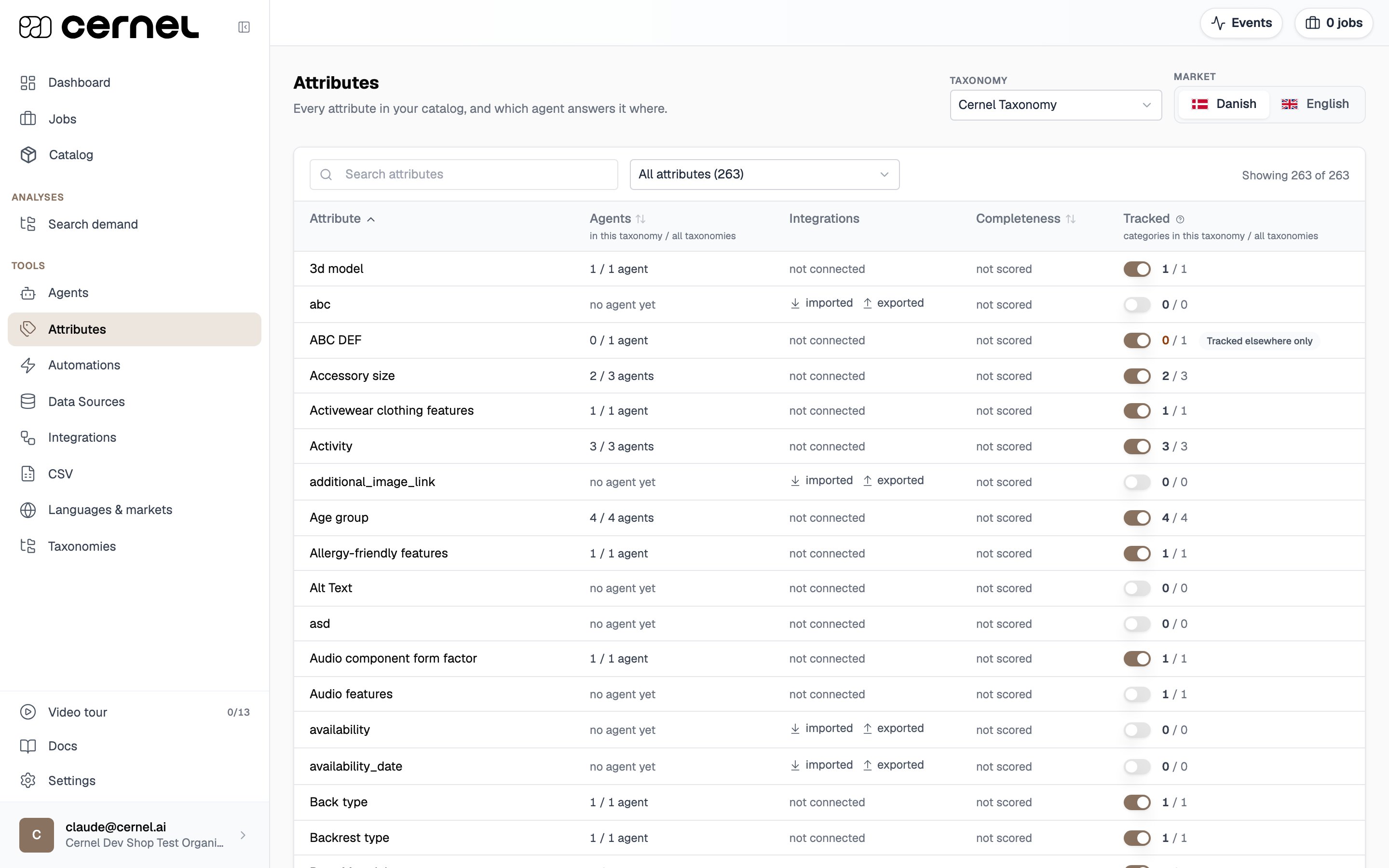
The Attributes page with the Taxonomy and Market pickers, the scope filter set to All attributes, and a table of attributes with Agents, Integrations, Completeness and Tracked columns, each row with a Tracked switch
Tracking applies to the attribute everywhere it is used, not only in the category you are looking at. Fewer, well-chosen tracked attributes give a sharper figure than tracking everything.
5

Raise the score

Enrich the attributes that are holding the figure back. The fastest way is to click Filter, add a Completeness filter set to Some tracked attributes have no value, which narrows the catalog to the products with gaps, then start enrichment, check Select all attributes, and turn on Only enrich missing fields so it fills only what is missing.
As values are enriched and the category is measured again, the completeness figure and the column fill figures climb. A category with a high completeness has the data buyers and channels expect.

Advanced configuration

Click Filter and add Completeness, under Product properties, to narrow the catalog by how filled its products are. It offers two conditions: All tracked attributes have a value and Some tracked attributes have no value. Because completeness depends on a product’s classification, the filter measures against the taxonomy you are viewing.This is the operational half of completeness: filter to Some tracked attributes have no value, then run enrichment on exactly those products. The same filter is available in an Automation, so you can keep a taxonomy complete as new products arrive.
The banner’s figure reads Across all levels: it covers every product in the category and its subcategories, and each product is measured against the tracked attributes of its own category. Subcategories can add tracked attributes that the category you are viewing does not have, so a product a few levels down can have more to fill than the columns on screen show. Hover the info icon beside Across all levels for the same explanation in the app.
With Insights on, each tracked column header shows the share of the category’s products that have a value for that attribute. This is the fastest way to spot a single attribute that is missing across a whole category, which usually points to one enrichment run that would lift the category noticeably.A column with only a handful of values reads <1% rather than 0%, and one a few products short of full reads >99% rather than 100%. A tracked column with no figure at all is one the latest measurement did not cover yet.
A product’s detail page carries the same completeness idea as a ring, measured against a category you pick with the Measure against and Category selectors. Because a product can belong to several categories at once, the ring lets you choose which category’s expectations to measure it against. The score counts only the attributes that category asks for; anything extra the product carries is listed but does not count. See Product detail.
Insights is a per-category view. Select a category, or the taxonomy’s top-level category, to see it. Unclassified products has no category to measure against, so Insights is not offered there.

Frequently asked questions

Completeness counts only the attributes tracked for the category you are measuring against. A product can carry plenty of extra values that do not count. Check which attributes are tracked on Tools > Attributes, and remember the product detail ring lets you choose which category to measure against.
Not necessarily. Completeness is a guide, not a target for its own sake. Track the attributes that matter for how your products are sold and found, and aim to fill those. An attribute you do not need should simply not be tracked, rather than left as a permanent gap.
Cernel has not measured that category yet, so there is no figure to show. A dash means unknown, not zero. Hover Reload completeness and recommendations to see Not measured yet or when the category was last measured, and click it to load the latest reading once a measurement has run.
The Catalog shows completeness for the category as a whole and for each tracked attribute column, rather than a score on every row. To see one product’s completeness, open its detail page and read the Completeness ring. To list the products that still have gaps, use the Completeness filter with Some tracked attributes have no value.
Yes. Tracking belongs to the attribute, not to the category, so the change applies in every category and taxonomy that uses it. The Attributes page shows where each attribute is used, so check there before you change it.
Completeness is calculated per taxonomy and per market. A product is measured against the category it is classified into, and that category, along with the attributes it expects, can differ between taxonomies. Each market is measured on its own values as well. So the same product can be highly complete in one taxonomy or market and still have gaps in another. Use the taxonomy and market selectors to choose which view you are measuring.
Completeness is measured against the attributes a product’s category expects, so a product that has not been classified into a category has nothing to measure against. Classify it into a taxonomy first, then its completeness reflects how much of that category’s tracked attributes are filled in.
Completeness tells you how much of the data you already track is filled in. Search demand tells you what shoppers search for that your catalog does not answer yet: new attributes to add and new options for the attributes you have, ranked by monthly searches. Use completeness to fill what you have, and Search demand to decide what to add.

What’s next

Search demand

See what shoppers search for that your catalog does not answer yet, ranked by monthly searches.

Jobs and Review

Run enrichment on the attributes holding a category back, then approve the results.

Product detail

See the completeness ring for a single product and choose which category to measure it against.

Attributes

See every attribute, where it is used, and which ones are tracked.