Cernel lets you invite team members to your organization and assign them roles that control what they can do. Admins manage the team, while regular users work with products, agents, and enrichment.

How it works

Each Cernel organization has a list of users. Users are invited via email and can be assigned one of two roles: Admin or User. Admins have full access to all settings including user management, while regular users can work with the platform’s core features. If you have access to multiple organizations, you can switch between them without logging out.

Why you would use this

Collaborate on product content

Invite team members so multiple people can configure agents, run enrichment, and review results.

Control who manages settings

Admin-only access for sensitive settings like integrations, user management, and API keys. Regular users focus on content work.

Managing users

Viewing your team

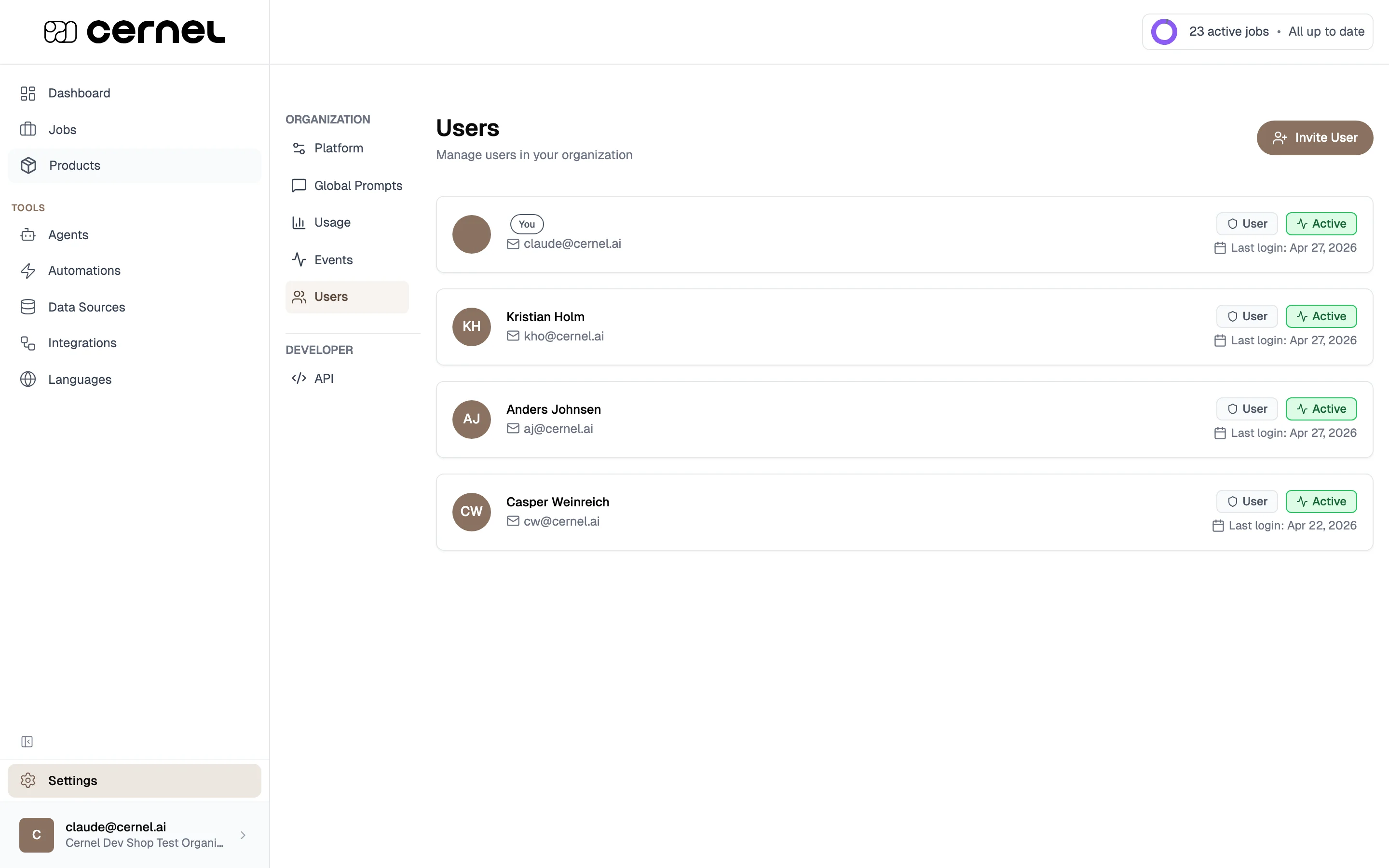
Go to Settings > Users to see all members of your organization. Each user card shows:
  • Name with a “You” badge for your own account
  • Email address
  • Role (Admin or User)
  • Status (Active or Inactive)
  • Last login timestamp
The Users page showing user cards with avatar initials, name with 'You' badge, email, role badge (Admin/User), status badge (Active), and last login date, with an 'Invite User' button

Inviting a new user

1

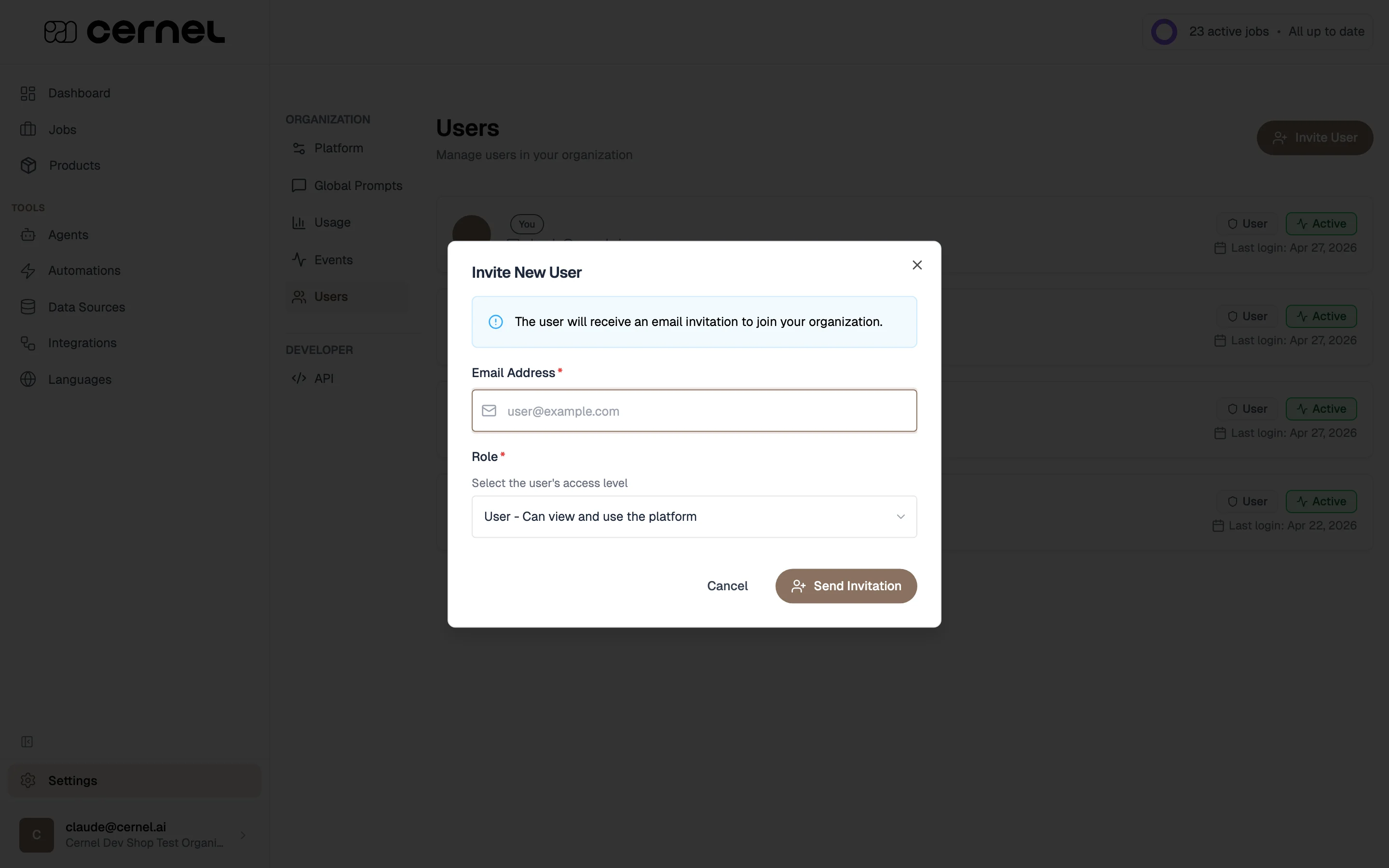
Click Invite User

On the Users page, click Invite User to open the invitation modal.
The Invite New User modal showing email address field, role selector with User and Admin options, and a Send Invitation button
2

Enter their email and role

Fill in:
  • Email Address - The email where the invitation will be sent
  • Role - Choose User (standard access) or Admin (full access including settings management)
New users receive an invitation email to set up their account. They’ll need to create a password before they can log in.
3

Send the invitation

Click Send Invitation. The user appears in your team list with an “Inactive” status until they complete their account setup.
The invitation has been sent. The user will appear as “Active” once they set up their account and log in.

Changing a user’s role

Admins can change any user’s role by clicking the role badge on their user card. Select the new role from the dropdown. Changes take effect immediately.

Removing a user

Admins can remove users by clicking the delete icon on their user card. A confirmation dialog asks you to verify. Removing a user revokes their access to the organization but doesn’t delete any content they created.

Your profile

Click your name in the sidebar to access your profile, or navigate to Profile directly. Here you can:
  • Edit your name (first and last name)
  • View your email (read-only)
  • Change your password via the change password drawer
  • See your account details (role, status, member since, last login)

Roles and permissions

CapabilityAdminUser
View and enrich productsYesYes
Create and edit agentsYesYes
Configure attributesYesYes
Run enrichmentYesYes
Review and approve contentYesYes
Manage integrationsYesNo
Manage users (invite, remove, change roles)YesNo
Configure platform settingsYesNo
Access API and webhooksYesNo
View usage metricsYesYes

Switching organizations

If you have access to multiple Cernel organizations, you can switch between them from the organization switcher in the sidebar. Your current organization is shown, and a dropdown lets you select a different one. Switching is instant and doesn’t require logging out.

Frequently asked questions

No. Only other admins can change your role. This prevents accidental loss of admin access. Every organization must have at least one admin.
The user immediately loses access to the organization. They can no longer log in or view any data. Content they created (agents, enrichment results, configurations) is not deleted.
Email addresses are set during account creation and cannot be changed through the profile page. Contact support if you need to update your email.
There is no limit on the number of users you can invite to your organization. Invite as many team members as you need.


What’s next

Settings & Configuration

Explore all platform settings available to admins.

What is Cernel?

Share this page with new team members to help them get started.